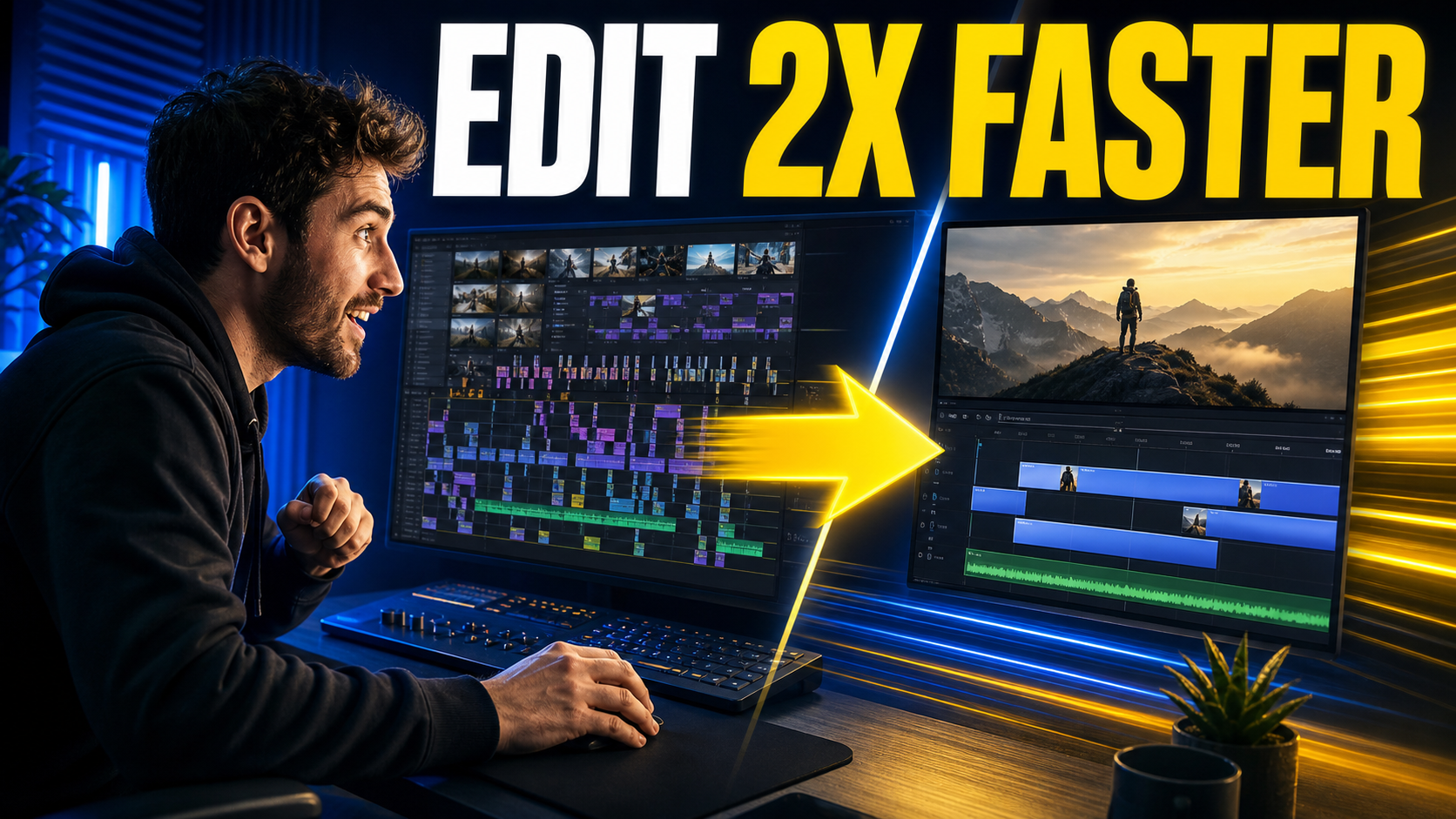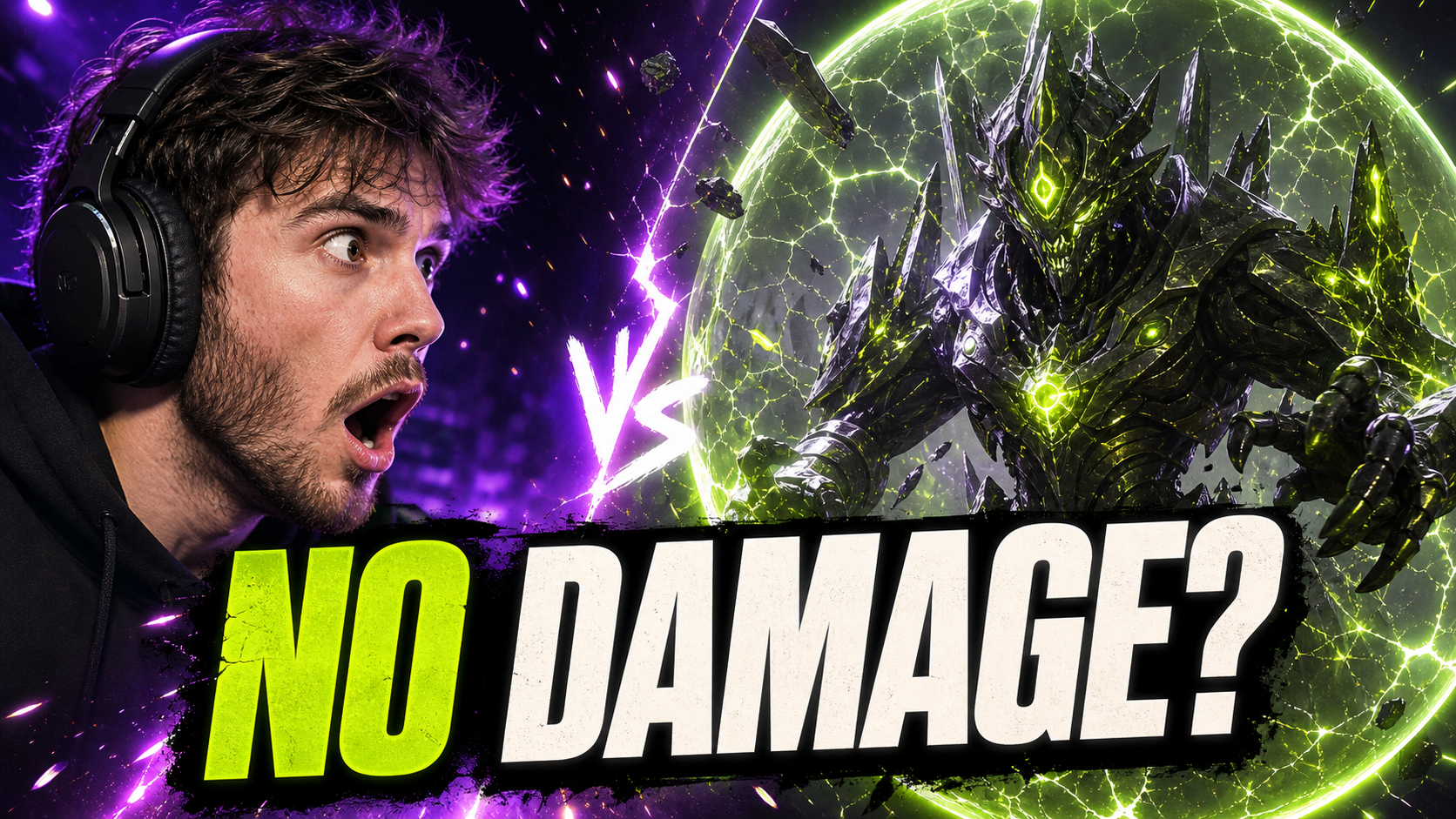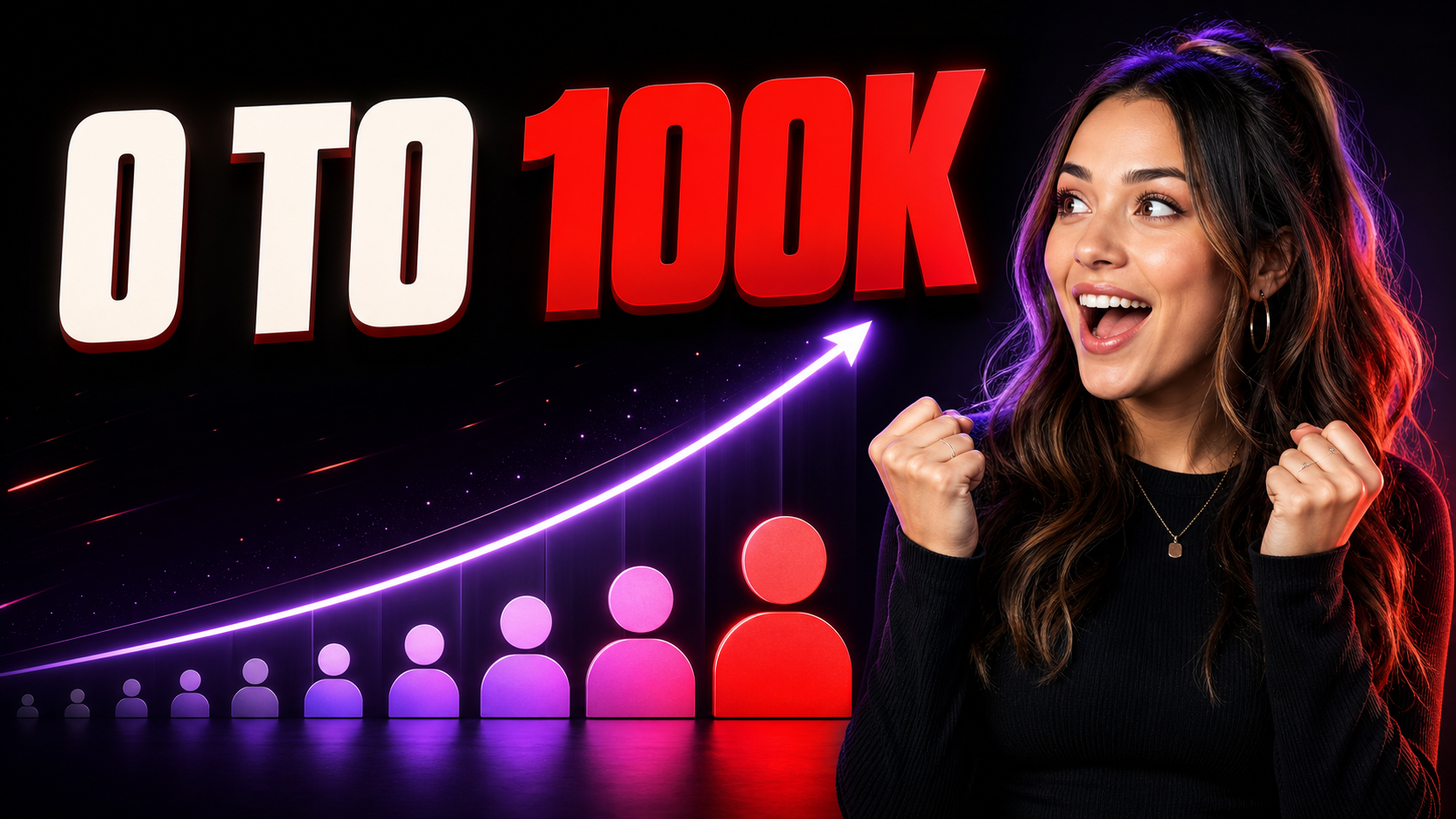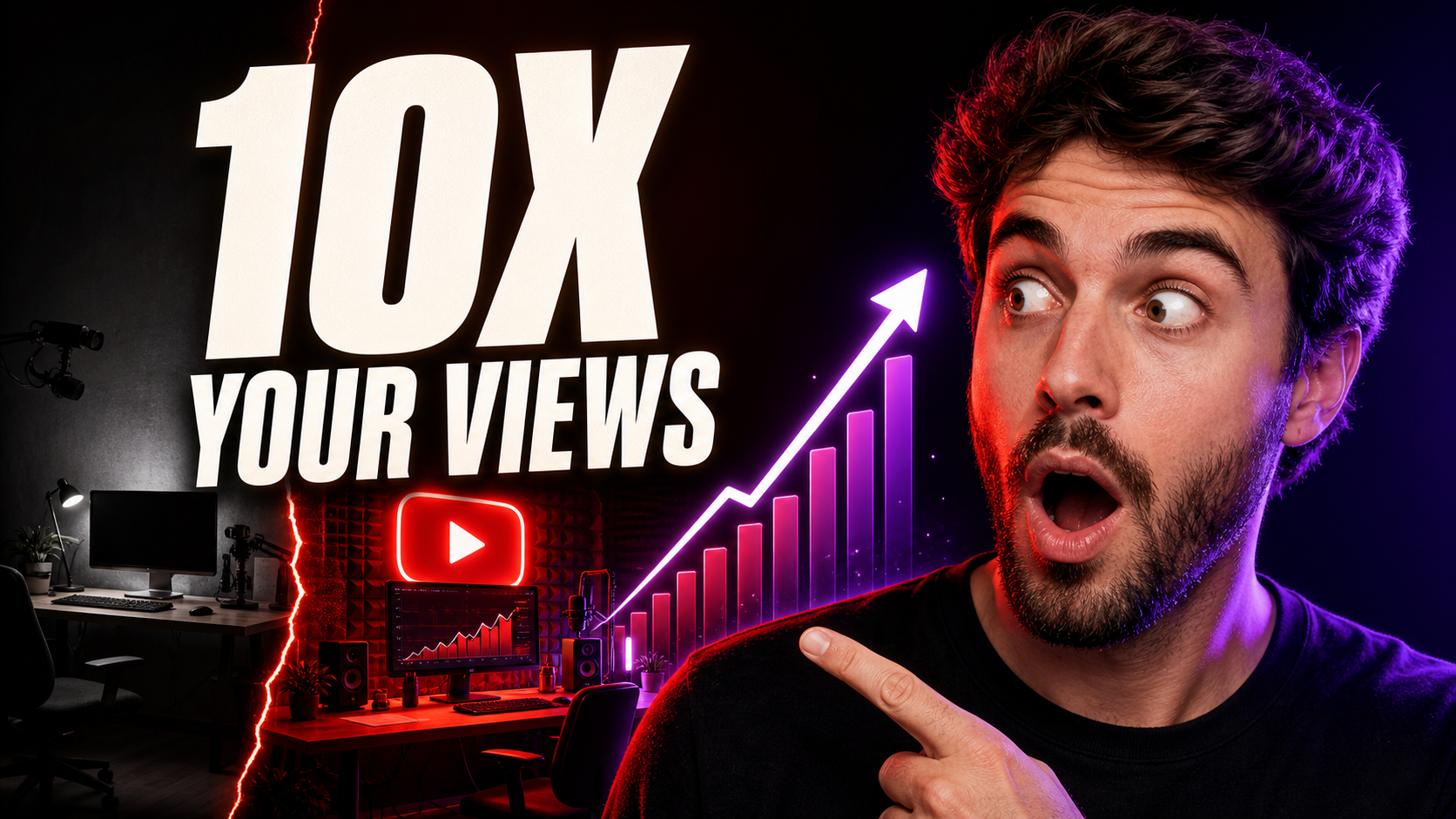
Create a polished 16:9 YouTube thumbnail for a video about growing a channel. Show a fictional surprised creator on the right with vivid red and violet rim light. On the left, show a dramatic before-and-after creator desk setup, an upward analytics graph, and a generic glowing play-button shape. Add the exact headline "10X YOUR VIEWS" in large condensed warm-white type. High contrast, readable at phone size, no real celebrity, no brand logo, no extra text, no watermark.
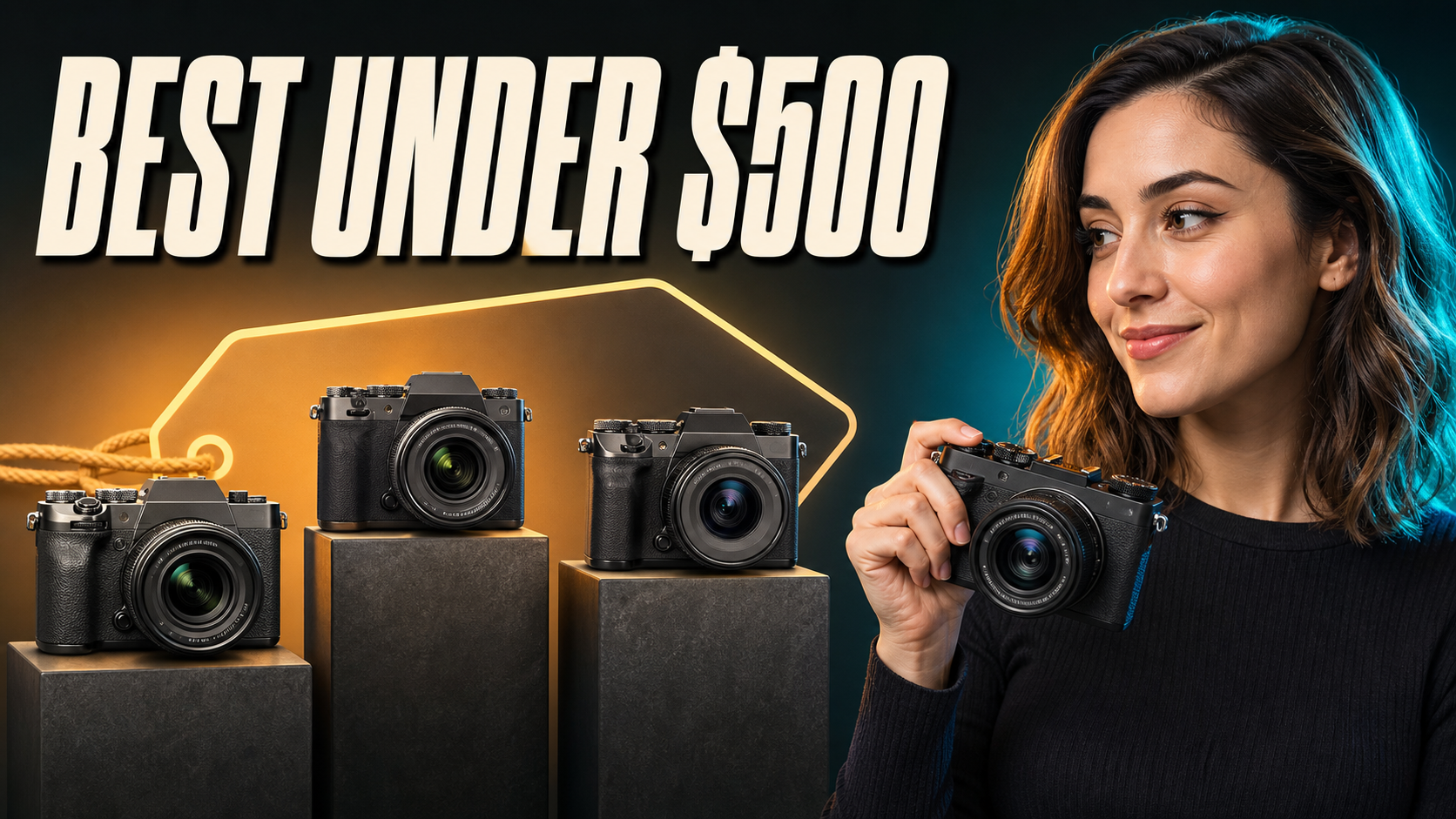
Create a YouTube thumbnail from a video idea or reference image
Start with the promise your title makes, then decide what single image would communicate that promise before anyone reads the title. The YouTube Thumbnail Generator turns that direction into a landscape concept you can download, refine, or reuse for another version.
Write one visual story
Say what the viewer should notice first: a face, product, result, comparison, or surprising moment. One focal idea is easier to read than a crowded list.
Keep headline text short
Put exact in-image wording in quotation marks and keep it brief. Shorter copy gives the model more room to make each letter large and legible.
Add a useful reference image
For supported models, upload a clear face, product, frame, or style reference. GPT Image 2 accepts up to 16 reference images, with a 30 MB limit per image.
How to write an AI YouTube thumbnail prompt
A useful prompt is a compact creative brief, not a list of trendy adjectives. Give the AI thumbnail generator the video promise, focal subject, composition, exact text, and constraints in that order.
1. State the video promise
Begin with what the viewer will learn, see, or discover: “a comparison of three budget cameras” is more actionable than “make a viral tech thumbnail.”
2. Name the focal subject and layout
Specify the main subject, expression or action, and position. For example: “surprised creator on the right, three cameras on the left, clean dark background.”
3. Quote the exact thumbnail text
Use a short phrase in quotation marks and describe its treatment: “BEST UNDER $500” in large warm-white condensed type. Ask for no other text.
4. Add visual constraints
Finish with the 16:9 ratio, color direction, mobile readability, and what to avoid: clutter, tiny objects, copied logos, watermarks, or a misleading result.
How to use the YouTube Thumbnail Generator
Go from a video idea to a downloadable thumbnail concept in three steps.
Describe the video and hook
Include the topic, main subject, emotion, background, color direction, and exact headline text. You can also upload a reference image.
Choose a model and quality
Keep the 16:9 canvas, choose an available model, and select 1K, 2K, or 4K where supported. GPT Image 2 currently costs 9, 15, or 24 credits at those quality levels.
Generate, review, and refine
Check text spelling, subject clarity, and mobile readability. Download the strongest version or reuse its setup to generate another direction.
YouTube thumbnail size, aspect ratio, and file requirements
Many thumbnail maker pages still repeat 1280 × 720 as the only target. YouTube Help now recommends a larger 3840 × 2160 image, while keeping the familiar 16:9 shape. Check the upload requirements again before publishing because platform guidance can change.
Use a 16:9 canvas
YouTube recommends 16:9 because it is the most common shape across its players and previews. This generator selects 16:9 by default.
Generate large, then resize if needed
YouTube Help recommends 3840 × 2160 with a minimum width of 640 pixels. Supported models here can generate at 1K, 2K, or 4K; resize after download when you need exact dimensions.
Use an accepted image format
YouTube lists JPG, GIF, and PNG among its supported thumbnail formats. Confirm that your downloaded file opens correctly after any external resizing or compression.
Check the device-specific file limit
YouTube currently lists a 2 MB limit for mobile video-thumbnail uploads and 50 MB on desktop. Compress the final image when your upload path requires a smaller file.
Fix common AI thumbnail problems before you publish
Generation is the first draft. A strong workflow includes a quick review at feed size, where spelling, clutter, weak hierarchy, and mismatched promises become easier to spot.
The text is misspelled
Shorten the phrase, put it in quotation marks, ask for no extra text, and generate again. Use an image editor for final typography when exact lettering matters.
The layout feels crowded
Remove secondary props and keep one face or subject, one supporting visual, and one short line of text. More empty space usually improves small-screen clarity.
The face or product drifts
Upload one clear reference with visible defining features, then state which details must remain recognizable. Avoid mixing unrelated references in the same run.
The thumbnail promises the wrong video
Rewrite the prompt around the real payoff. YouTube policy does not allow thumbnails that mislead viewers about what they are about to watch.
Thumbnail ideas for the videos you already make
Change the subject, composition, and headline to fit the promise of each video instead of forcing every channel into the same template.
Tutorials and explainers
Show the finished result, the tool being used, or a clear before-and-after change.
Reviews and comparisons
Place the product or competing choices at the center, then use one reaction or verdict as the hook.
Gaming and entertainment
Build around one dramatic moment, recognizable character, challenge, or outcome from the video.
Business and creator education
Turn a number, result, workflow, or mistake into a simple visual promise without stuffing the canvas.
Why create YouTube thumbnails with PromptsRef?
This AI YouTube thumbnail maker uses the same working image workspace as the rest of PromptsRef, so you can compare models, control output settings, and continue editing without rebuilding your setup.
Multiple AI models in one workflow
Compare supported image models from the same prompt instead of rebuilding the brief in separate tools.
Reference-image support
Use a face, product, video frame, or visual reference when the selected model accepts image input.
Output up to 4K
Choose 1K, 2K, or 4K output on supported models, with the credit total shown before generation.
Companion editing tools
Continue with the AI Image Editor or image upscaler when you need another crop, cleanup pass, or larger export.
Other AI Image Generators
Want a different look? Each generator opens with its own examples, prompt tips, and ready-to-use settings.
AI imageAI LinkedIn Photo Generator
Upload one clear photo and turn it into a polished professional headshot. Keep your recognizable features while changing the outfit, background, lighting, and crop for LinkedIn, a résumé, or a company profile.
AI imageAI Product Listing Image Generator
Upload a product photo or describe what you sell. Create clean product shots, lifestyle scenes, and ad images for your online store.
AI imageAI Engraving Generator
Turn a prompt or reference image into artwork with cross-hatching, carved marks, and the texture of a traditional print.
AI imageAI Furry Art Generator
Start with a species and a few features you can picture clearly. Add an outfit, pose, and setting—or upload a reference image—and keep refining the character from there.
AI imageAI Giga Chad Generator Online Free
Upload a clear portrait or start with a prompt. Create a recognizable Gigachad-style image with a sharper jawline, sculpted cheekbones, confident expression, and the dramatic lighting that makes the meme instantly readable.
AI imageFree AI Game Character Generator Online
Create original game character art from a text prompt or reference image. Choose an AI model and aspect ratio, then generate heroes, NPCs, enemies, portraits, and full-body concepts online.
AI imageFree AI Selfie with Celebrities Generator Online
Start with two clear photos: one of you and one celebrity reference. Load a complete example, replace the sample images, and create a believable backstage, premiere, or stadium selfie without manual compositing.
YouTube Thumbnail Generator FAQ
It creates 16:9 raster thumbnail concepts from a text prompt and, on supported models, reference images. It does not publish the result to your YouTube channel.
No. You can start from text only. A clear reference is useful when the thumbnail needs to feature a specific face, product, video frame, or established visual direction.
Write it like a short creative brief: video promise, main subject, composition, emotion or action, background, colors, exact quoted headline, 16:9 ratio, and anything the model should avoid.
YouTube Help recommends 3840 × 2160 with a minimum width of 640 pixels and a 16:9 aspect ratio. This generator defaults to 16:9 and offers 1K, 2K, or 4K on supported models; resize the download if you need an exact pixel size.
The total depends on the model and quality. For GPT Image 2, the current cost is 9 credits at 1K, 15 at 2K, or 24 at 4K. The form shows the total before you generate.
No AI image model guarantees perfect text. Keep the wording short, quote it exactly, and review every letter before publishing. Generate another version or use an editor when needed.
No. PromptsRef is not affiliated with or endorsed by YouTube or Google. YouTube is a trademark of its respective owner.
Create a YouTube thumbnail for your next video
Describe the video, choose a model, and generate a 16:9 thumbnail concept you can refine.