AI Engraving Generator

Turn a prompt or reference image into artwork with cross-hatching, carved marks, and the texture of a traditional print.

0/20000
Total Credits9
GPT Image 29
Publish to Explore
?
👑
Vilnius Heraldry

Heraldic coat of arms of Vilnius, black and white engraving style, Saint Christopher wading through a river carrying the infant Jesus on his shoulder with a golden staff, Spanish heraldic shield shape, two female shield-bearers flanking the shield - one holding lictor fasces, the other holding scales of justice with an anchor at her feet, laurel wreath crowning the crest, banner below with motto "Unitas Justitia Spes", intricate crosshatching, fine linework, antique copperplate engraving, ornate heraldic detail, vintage etching texture, high contrast --ar 4:3 --raw --profile wih3ccx --hd --preview

Create engraving-style art from text or an image

Start with a prompt or upload a reference image. Choose the subject, printmaking technique, line density, contrast, paper, and composition. The generator creates a new raster image in an engraved style; it does not simply place a filter over the original.

Start with a text prompt

Describe a portrait, animal, landscape, emblem, building, or imagined scene and create it from scratch.

Transform a reference image

Upload an image when you want the generated artwork to follow a recognizable subject, pose, or overall composition.

Pick a print style

Switch models, choose an aspect ratio, and move from delicate copperplate lines to a bold black-and-white woodcut.

Create an engraving
Artwork created with the AI Engraving Generator

Choose a reference image with a clear subject

Engraved images depend on clear contours and distinct areas of light and shadow. A photo with one obvious subject usually works better than a crowded scene. You can upload several references, but start with one strong image and add others only when each serves a clear purpose.

Keep the silhouette readable

Portraits, pets, architecture, plants, and objects work well when their outline is easy to distinguish from the background.

Look for useful light and contrast

Clear highlights and shadows give the model shapes it can turn into hatching, stippling, and solid carved areas.

Remove unnecessary clutter

Busy backgrounds, tiny faces, motion blur, and overlapping subjects can turn into noisy or confusing linework.

Upload a reference image
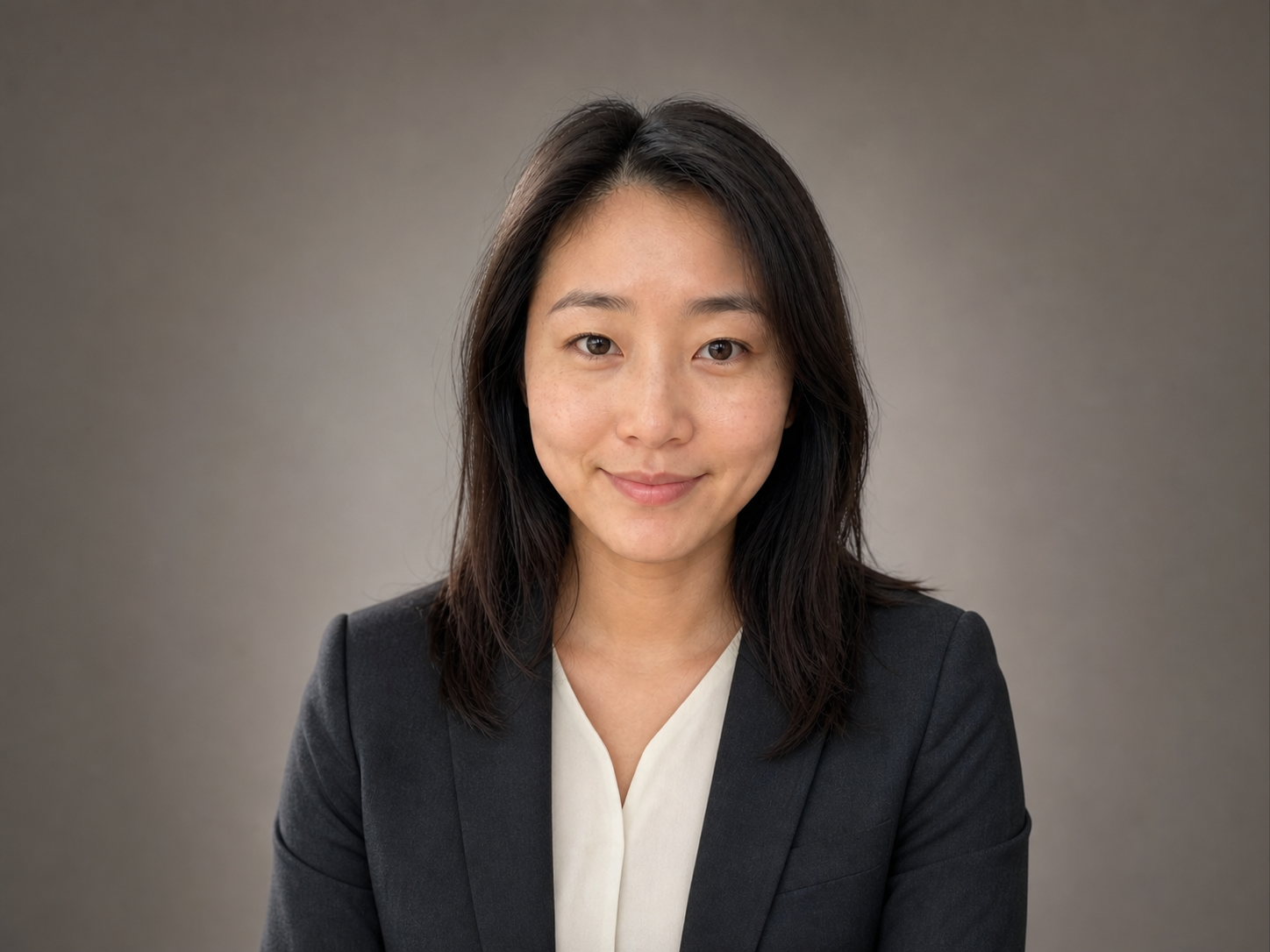
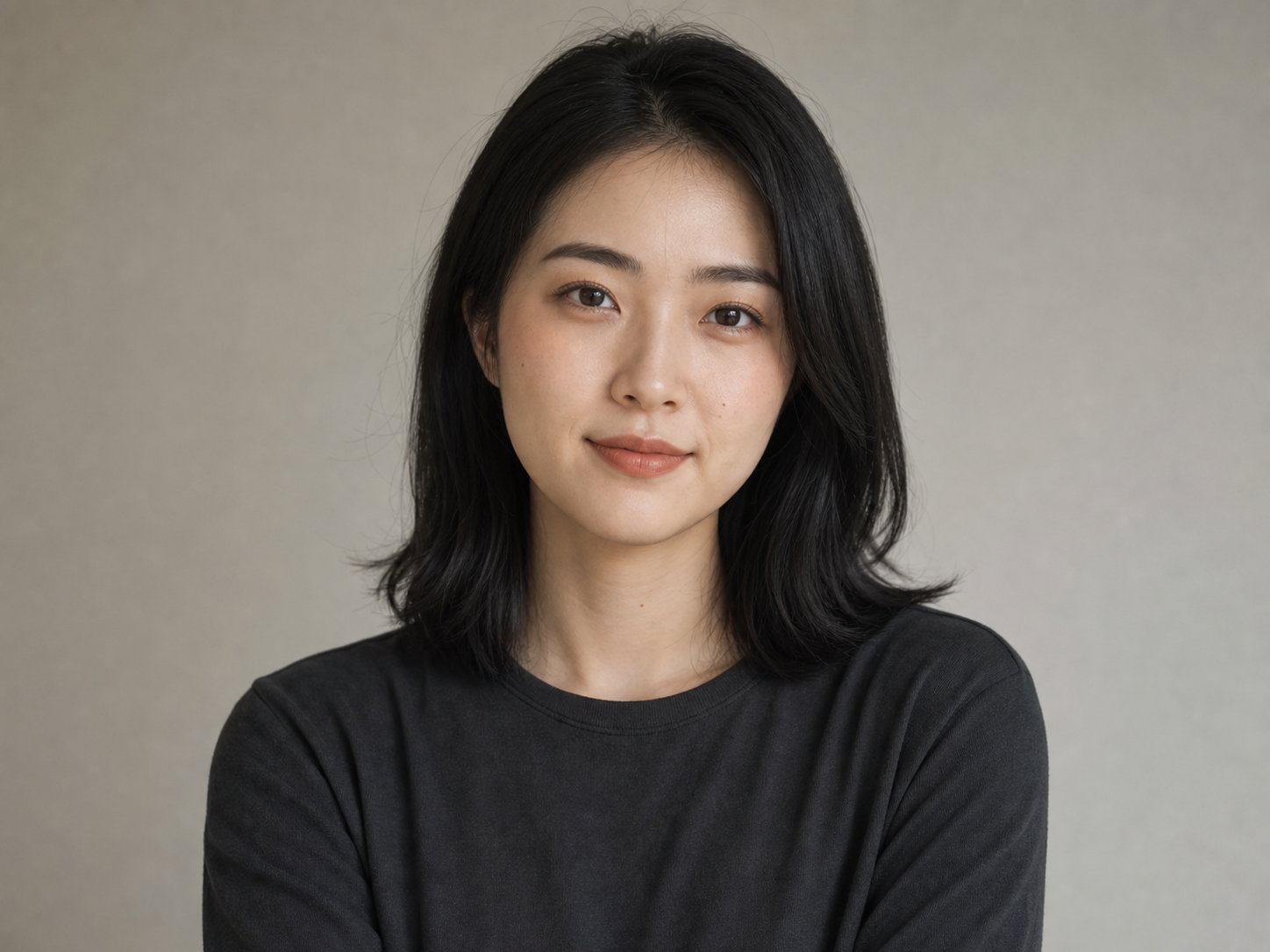
Clear reference image for an AI engraving conversion

Choose an engraving style that fits the subject

Engraving is not one fixed look. Copperplate, etching, woodcut, and linocut each handle lines and shadows differently. Name the technique in your prompt instead of asking for a generic vintage effect.

Copperplate engraving

Use fine controlled lines, dense cross-hatching, elegant contours, and antique book-plate detail for portraits and ornate subjects.

Etching and intaglio

Try looser, needle-like lines, varied marks, soft shadows, and ink pressed into textured paper.

Woodcut or linocut

Choose bold carved shapes, simplified forms, visible gouge marks, and strong black-and-white contrast for posters and graphic illustrations.

Stipple and banknote linework

Use dots, guilloché curves, ornamental borders, and precise tonal patterns for emblems, labels, and decorative portrait treatments.

Try an engraving style
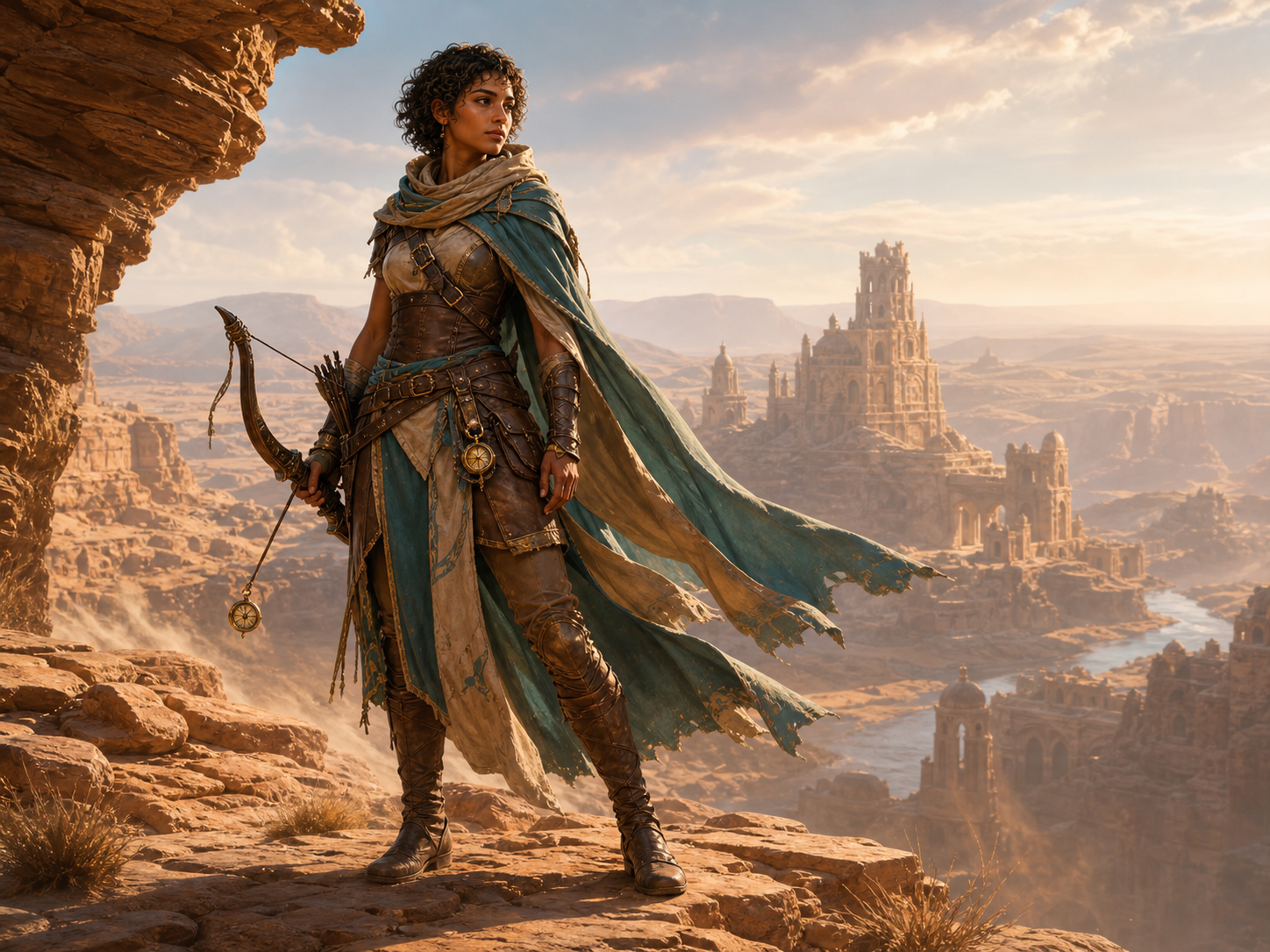
Different line and print directions for engraving-style art

Write a better AI engraving prompt

Skip the long list of adjectives. Name the subject first, then add the technique, line style, contrast, surface, and composition. With a reference image, say what must stay recognizable and what the model may change.

Use a simple prompt formula

Subject + technique + linework + ink or contrast + paper or material + composition is enough for a first attempt.

Make one visual decision at a time

Refine line density, background detail, paper tone, or lighting separately so you can see which instruction improved the result.

Add exact lettering later

AI image models may distort small words and ornamental type. Generate the illustration first, then add important text in a design editor.

Write an engraving prompt
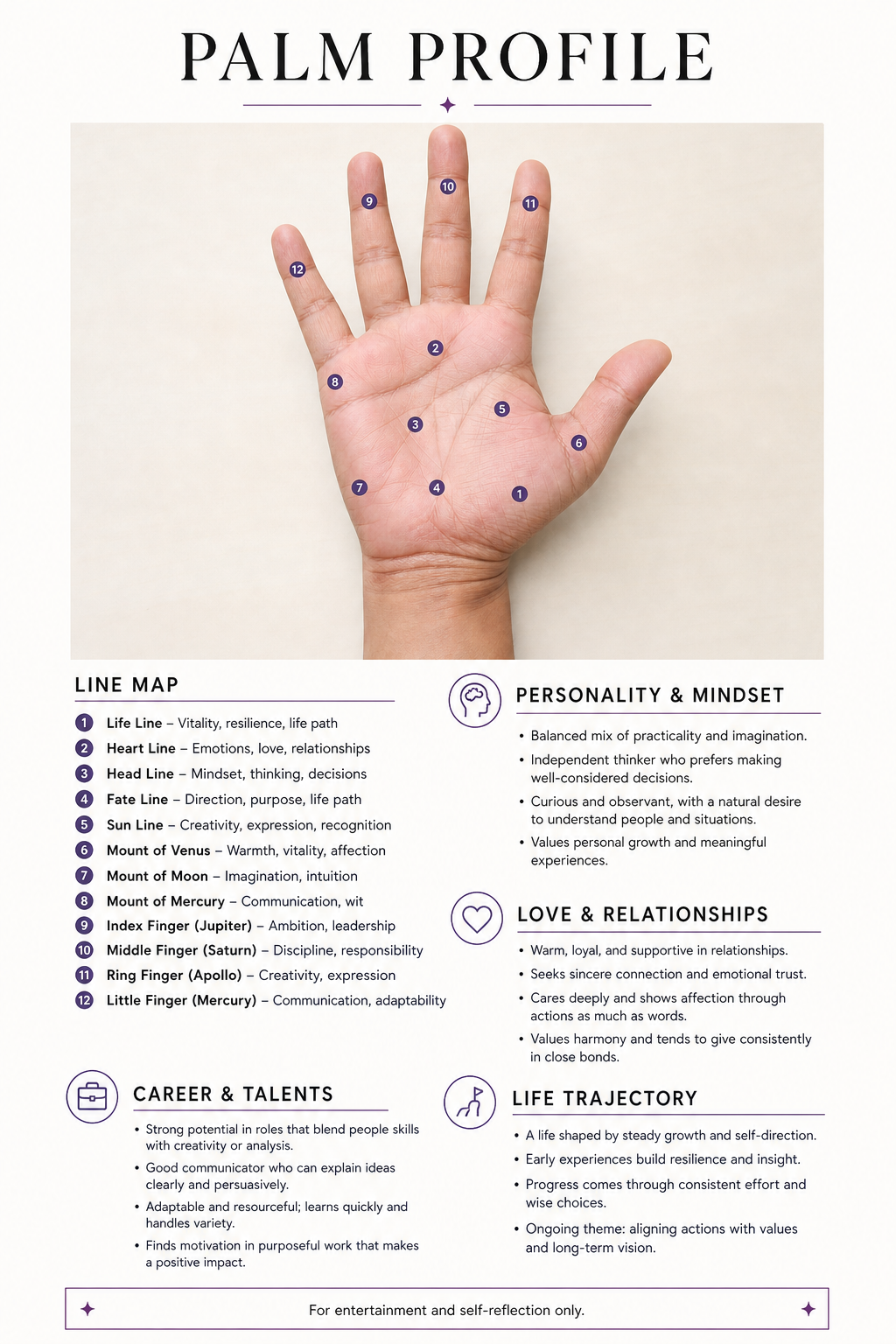
Prompt ingredients for generating engraving-style artwork

How to use the AI Engraving Generator

Load one of the examples above or make your own image in three steps.

1

Write a prompt or add a reference

Describe the subject and engraving technique. Upload a clear image if identity, pose, or composition should guide the result.

2

Select a model and aspect ratio

Choose the image model and canvas shape for a square emblem, vertical portrait, book illustration, poster, or wide landscape.

3

Generate, compare, and refine

Check the linework and contrast, change one prompt detail, and try again. Download or share the version you prefer.

Engraving ideas to try

Try natural-history plates, editorial illustrations, heraldic emblems, book art, tattoo concepts, packaging graphics, or landscapes. Open an example above to load its prompt, model, and aspect ratio.

AI Engraving Generator FAQ

An AI Engraving Generator creates a new image with the lines, marks, and contrast found in traditional printmaking. Start with a text prompt, or use a reference image to guide the subject and composition.

Yes. Upload a clear photo, choose a model that accepts references, and name the engraving style. Say what should remain recognizable, such as a face, pose, building outline, or a pet’s markings.

Use an image with a clear main subject, readable edges, useful contrast, and enough resolution to show important features. Avoid heavy blur, very small subjects, crowded backgrounds, and multiple overlapping faces when you want clean linework.

Try copperplate engraving, etching, intaglio, woodcut, wood engraving, linocut, stippling, scientific illustration, banknote linework, or vintage editorial art.

No. Text-to-image generation is useful when you want to invent a scene from scratch. A reference image is better when you need the output to follow an existing subject, pose, object, or composition.

Name the subject first, then specify the technique, line character, contrast, paper or material, and composition. For example: “owl perched on an oak branch, copperplate engraving, fine cross-hatching, black ink on warm ivory paper, centered natural-history plate.”

No. This page generates engraving-style raster artwork. It does not automatically produce calibrated 1-bit files, vector paths, material settings, or machine-ready SVG and DXF files. If you plan to engrave the result physically, check contrast and line thickness, then prepare and test the file in your laser or CNC software.

The required credits depend on the selected model, quality, and batch count. The generator shows the current total before you submit, so you can review the cost before creating the image.

Permitted use depends on the applicable Promptsref terms, the selected model provider, and any rights connected to your prompt or reference images. Make sure you have permission to use uploaded material and review the current terms before commercial use.

Create your own engraving-style image

Load an example, write a prompt, or upload a reference image, then choose the print style that fits your subject.