AI LinkedIn Photo Generator

Upload one clear photo and turn it into a polished professional headshot. Keep your recognizable features while changing the outfit, background, lighting, and crop for LinkedIn, a résumé, or a company profile.

Your photoYour photo
524/20000
Total Credits9
GPT Image 29
Publish to Explore
?
👑
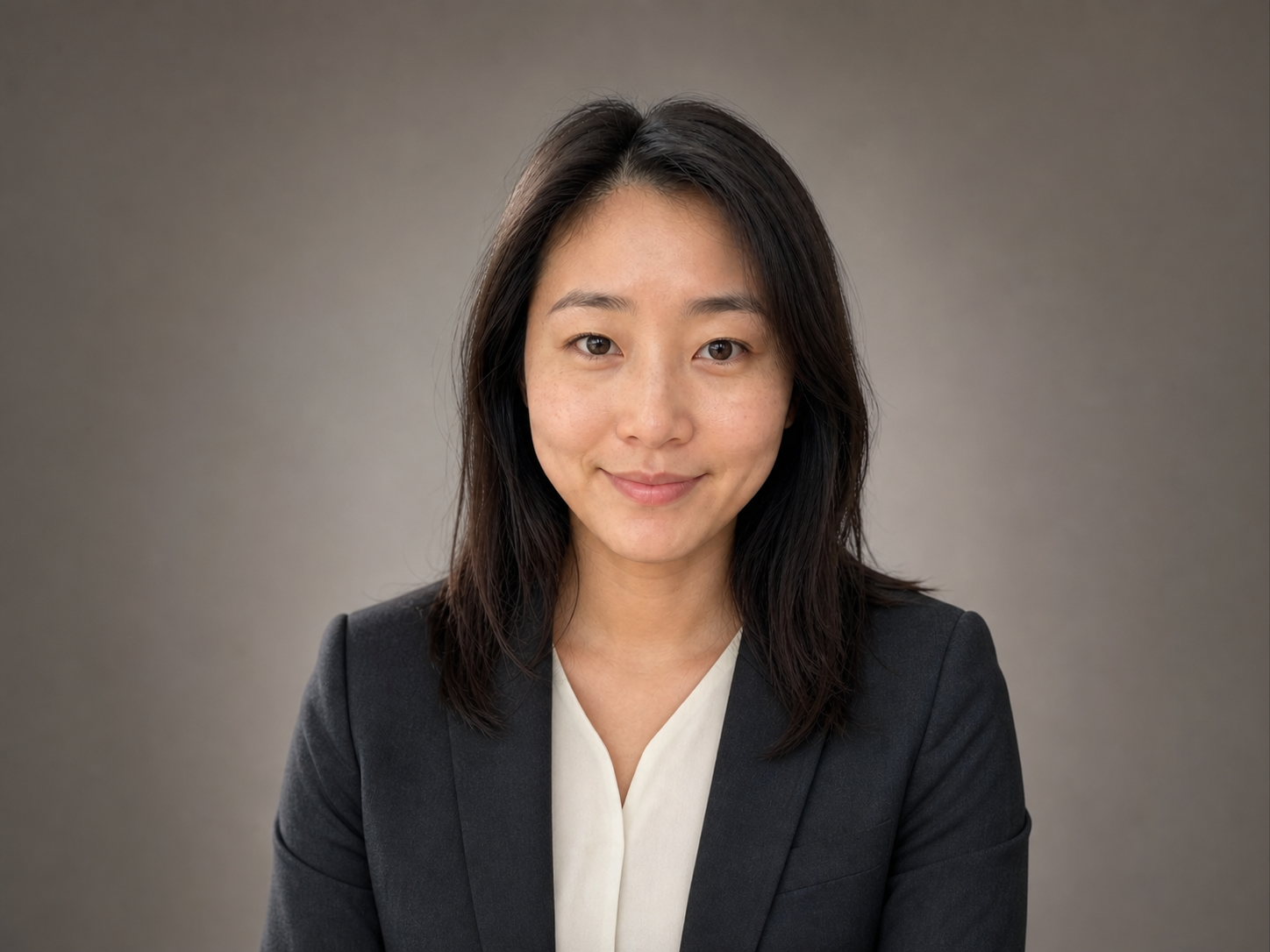
Product Manager

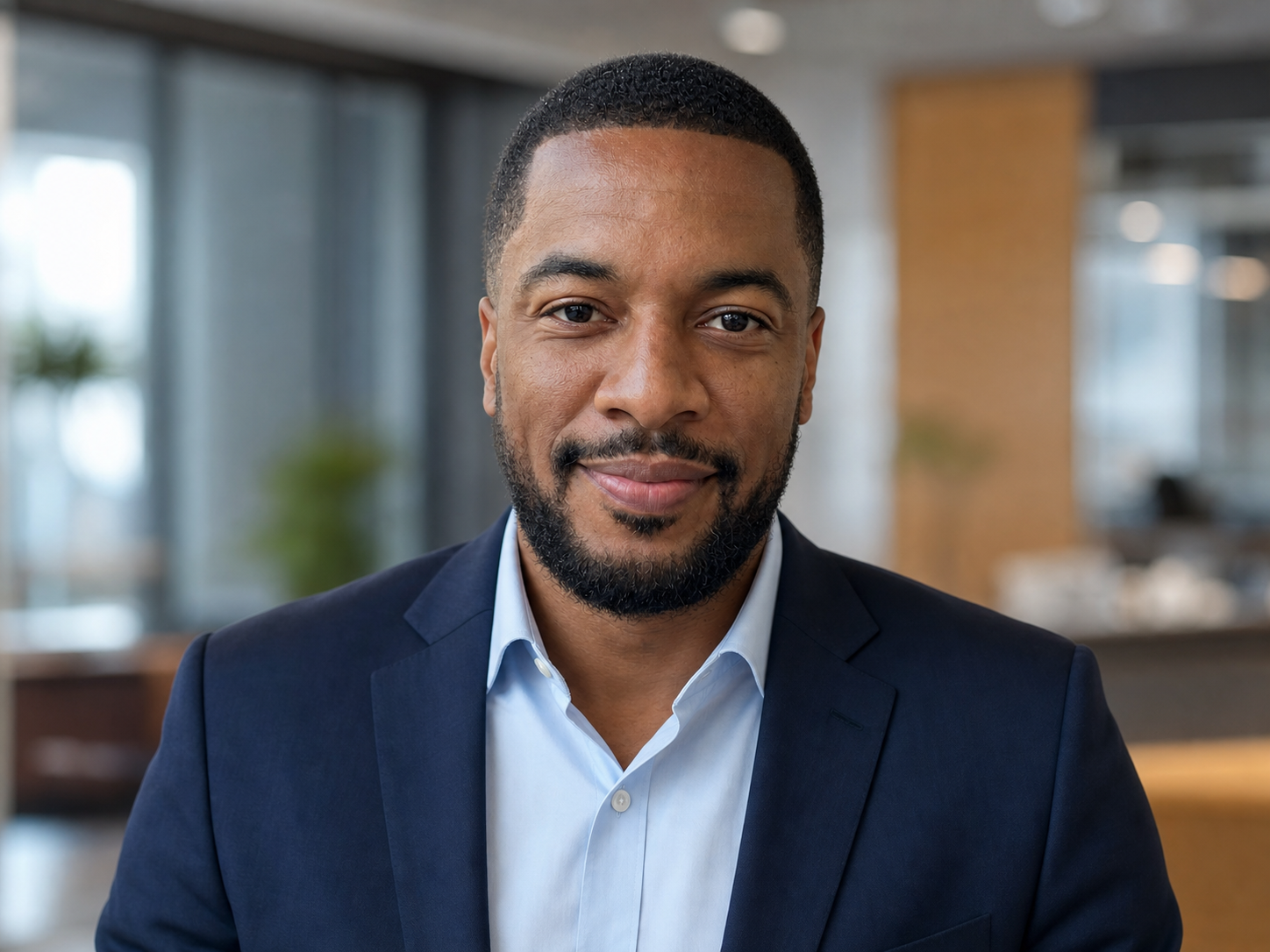
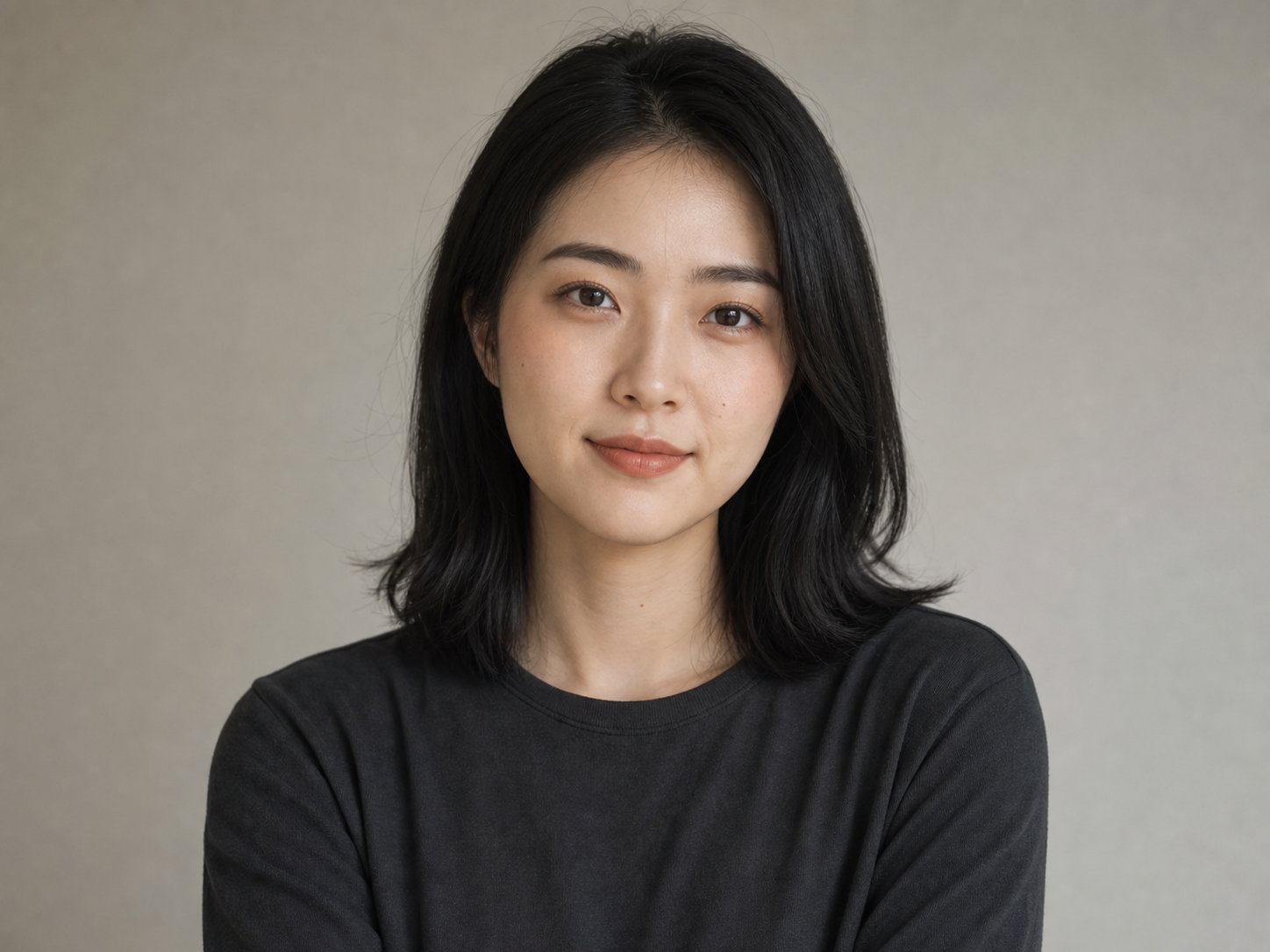
Use the uploaded photo as the identity reference. Create a realistic professional LinkedIn headshot for a product manager. Preserve the same face, age, skin tone, hairstyle, and recognizable features. Use a charcoal blazer over an ivory blouse, a clean warm-gray studio background, soft studio lighting, natural skin texture, and a calm confident expression. Centered chest-up composition with enough space for a square or circular profile crop. No face reshaping, plastic skin, glamour retouching, logo, text, or watermark.
Turn a casual photo into a professional LinkedIn headshot

The AI LinkedIn Photo Generator uses your uploaded portrait as an identity reference, then creates a new professional image around it. You can replace a distracting background, improve uneven lighting, choose work-appropriate clothing, and leave enough space for LinkedIn’s circular profile crop. The result is a newly generated portrait, so review facial details carefully before using it.

Keep the person recognizable

Tell the model to preserve your face shape, skin tone, hair, age, and other defining features. A clear identity instruction helps prevent the polished result from looking like a different person.

Match the photo to your field

Choose a formal studio portrait, a relaxed office headshot, or a more expressive creative-industry look. Describe the role and visual tone instead of relying on a generic “professional” prompt.

Plan for the final crop

Ask for a centered chest-up composition with the full head and shoulders visible. Keep important details away from the corners so the image still reads clearly inside a square or circle.

Create a LinkedIn photo
Professional AI LinkedIn headshot of a product manager in a charcoal blazer

Choose a photo the AI can identify clearly

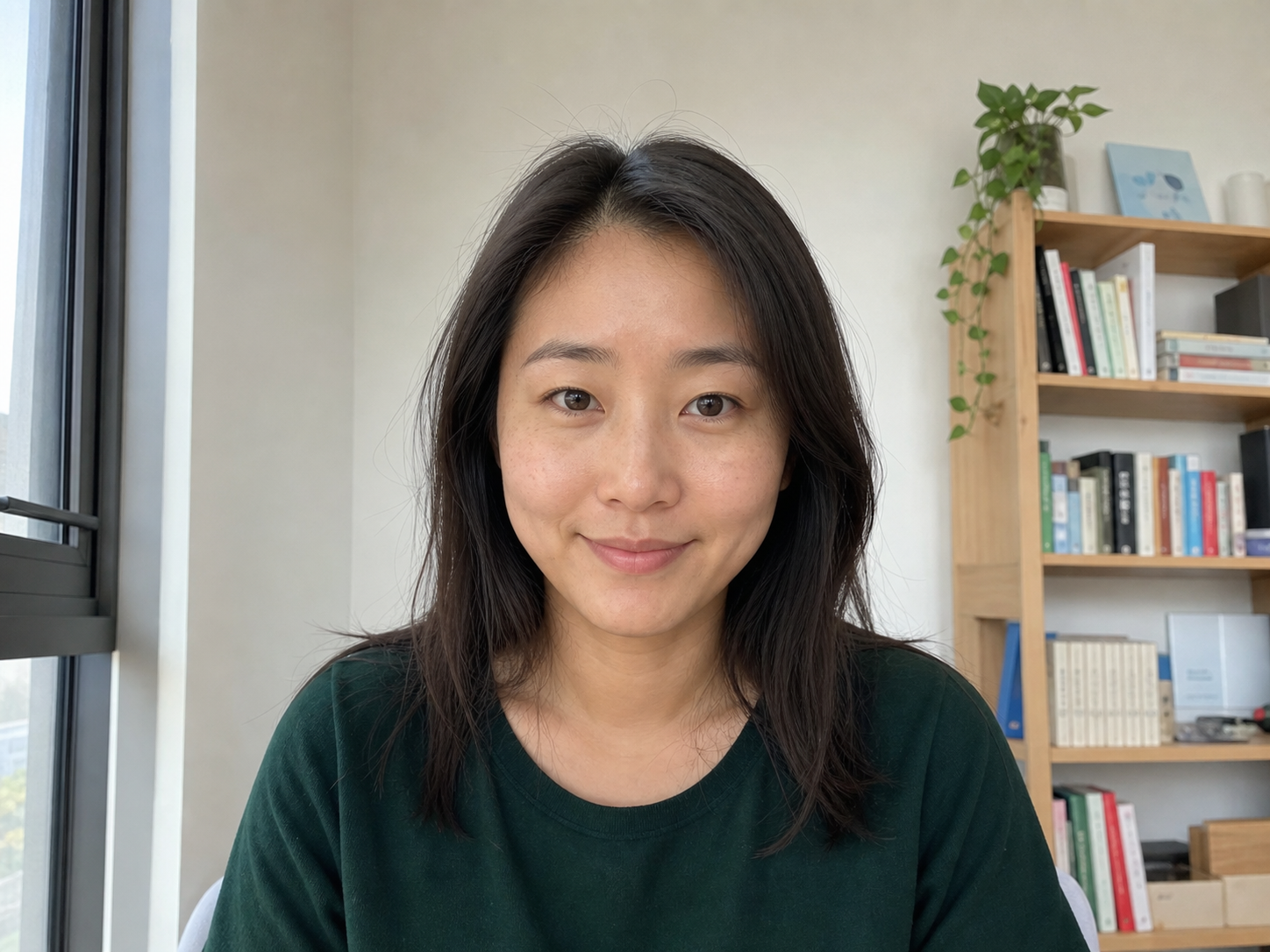
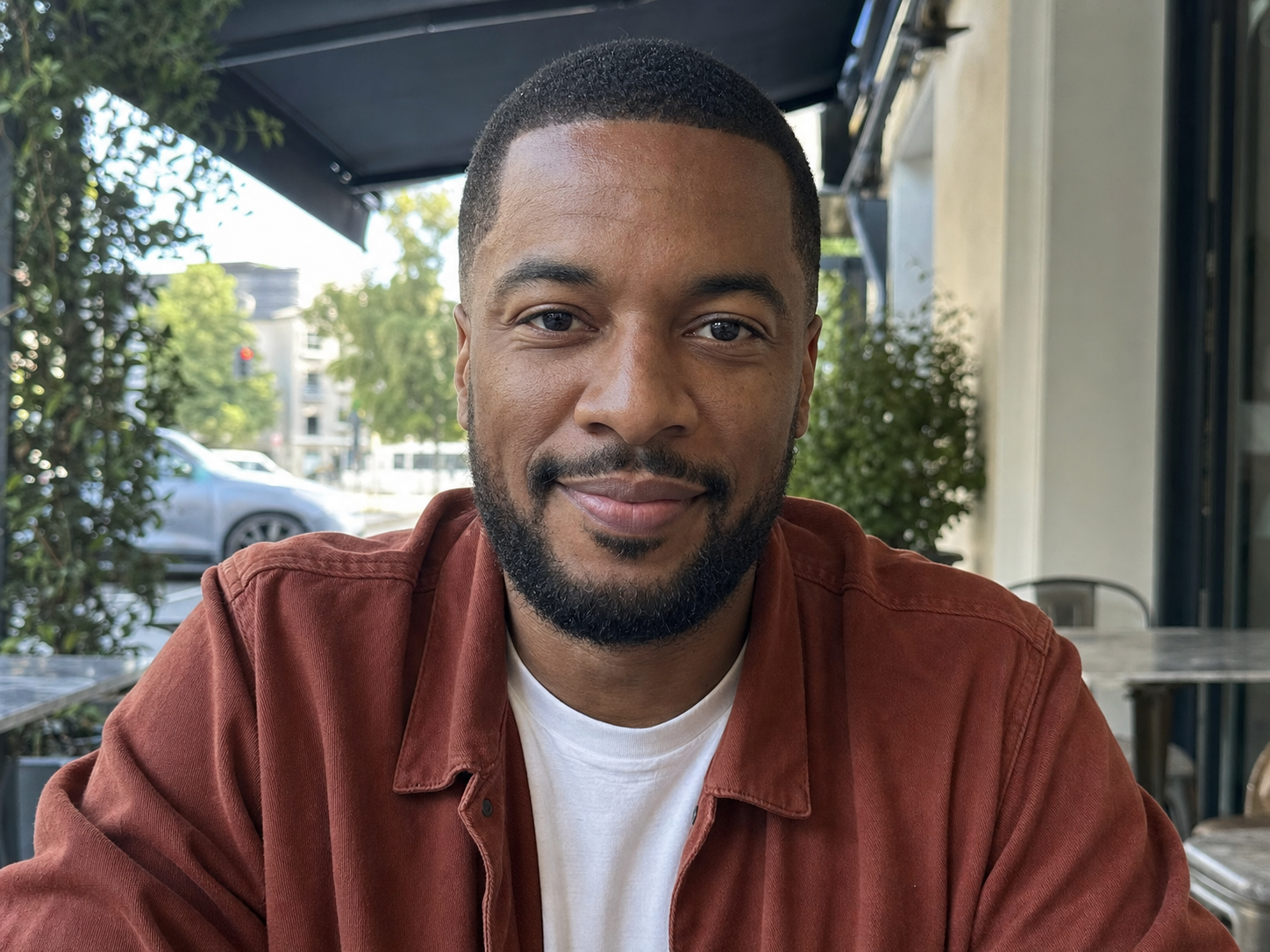
One strong reference is usually more useful than several inconsistent selfies. Use a recent image with a visible face, natural expression, and enough resolution to inspect the eyes, hairline, and jaw. LinkedIn requires a profile photo to reflect your likeness, so avoid asking the model to replace your identity with a stock face, celebrity, or fictional character.

Face the camera

A front-facing or gentle three-quarter view gives the AI a reliable map of your features. Avoid extreme angles, sunglasses, masks, heavy filters, motion blur, and hair covering most of the face.

Use even, natural light

Window light or open shade is enough. Harsh shadows and blown highlights can hide the details the model needs to preserve, especially around the eyes and skin texture.

Upload only a photo you may use

Use your own image or one you have permission to edit. Review the sharing setting before generating if the source photo or result should remain private.

Upload a clear photo
Clear casual portrait suitable as input for an AI LinkedIn photo generator

Why create your LinkedIn headshot with Promptsref

You can build the portrait in the same image-generation workflow you already use for other visual tasks. Start from a complete headshot example, replace its sample image, and refine the prompt without manually masking hair, cutting out a background, or matching studio light.

Compare multiple image models

The generator supports several image models in one interface. Start with a model that accepts reference photos, then compare another model when you want a different balance of realism, styling, and cost.

Choose ratio and quality before generating

Available aspect ratios and resolution options appear with the selected model. Create a crop-safe portrait here, then use the companion 4K upscaler when you need a larger file for a team page, speaker bio, or print layout.

Download without an added watermark

Inspect the full-size result, download the image, or continue refining it with the AI Image Editor. The download action does not add a Promptsref watermark to the generated portrait.

Try the headshot workflow
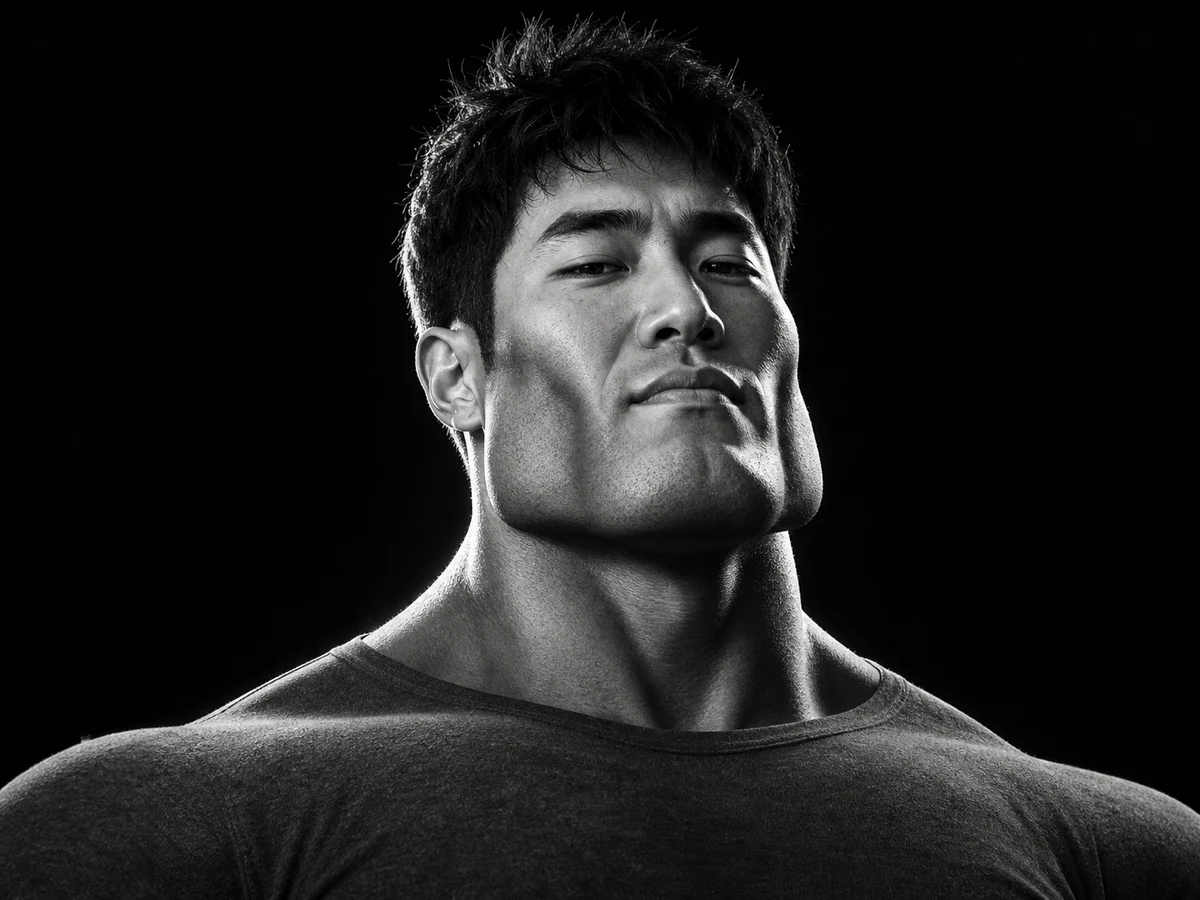
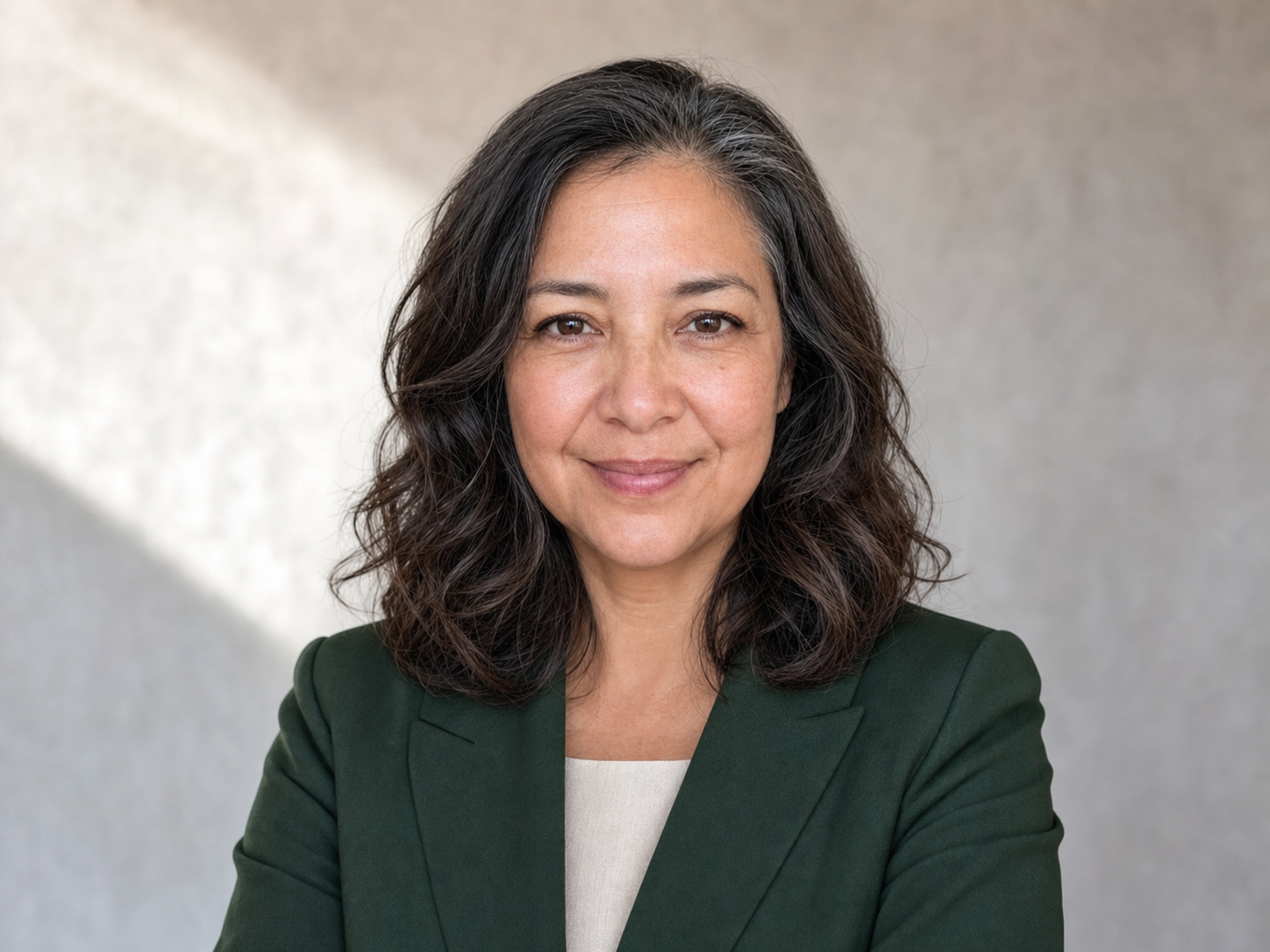
Professional AI headshot for a creative director with natural skin texture

How to use the AI LinkedIn Photo Generator

Create a professional profile photo from one portrait in three practical steps.

1

Load a headshot example and replace the photo

Choose the product manager, consultant, or creative director example. Load its setup, then replace the sample identity image with one clear photo of yourself.

2

Describe your professional look

Set the role, clothing, background, lighting, expression, and crop. Keep a sentence that tells the model to preserve your face, hair, skin tone, age, and recognizable details.

3

Generate, review, and download

Check the selected model, aspect ratio, resolution, credit total, and visibility setting. After generation, inspect the eyes, teeth, hair, clothing edges, hands, and background before downloading your preferred result.

Professional headshot styles to try

The right look depends on your work and the impression you want to make. Keep the face and crop consistent, then test clothing, background, and lighting changes one at a time.

More to make

Other AI Image Generators

Want a different look? Each generator opens with its own examples, prompt tips, and ready-to-use settings.

AI LinkedIn Photo Generator FAQ

It turns an uploaded portrait into a newly generated professional headshot. Your photo guides the person’s identity, while the prompt controls the outfit, background, lighting, expression, and crop.

Use one recent, sharp photo with a clearly visible face, natural skin detail, and a front-facing or gentle three-quarter angle. Avoid sunglasses, heavy beauty filters, motion blur, tiny faces, and harsh shadows.

A strong reference and explicit identity instructions can preserve recognizable features, but an AI-generated image may still change facial details, hair, age, clothing, or proportions. Review every result closely and use a real photo when exact documentary accuracy is required.

You can start from any complete example on this page. Replace its sample photo, then change only the role, outfit, background, or expression you want. Keeping the identity-preservation sentence is recommended.

You can use an appropriate result if it reflects your likeness and follows LinkedIn’s current profile-photo rules. LinkedIn states that profile photos may be artistic renderings, but they must represent the member and cannot consist only of another person, a company logo, text, an animal, or a landscape.

Yes, the same professional portrait can be useful for a résumé, portfolio, team page, speaker bio, or email profile. Check the image and usage policies of the destination before publishing.

A 1:1 result is convenient for direct profile use, while 4:3 leaves more room to refine the crop. In either case, keep the face centered and leave space around the head because LinkedIn displays profile photos inside a circle.

The credit cost depends on the selected image model, resolution, and number of outputs. The current total appears in the generator before you submit the task.

No. The source portraits and professional headshots shown on this page were created as original fictional examples for demonstrating the workflow.

No. Promptsref is not affiliated with or endorsed by LinkedIn. LinkedIn is a trademark of its respective owner.

Create a professional profile photo that still feels like you

Upload one clear portrait, choose a work-ready look, and generate a crop-safe headshot for LinkedIn and beyond.