

Other AI Video Generators
Dame Hombro AI Video Generator
One photo, the whole Dame Hombro moment. Upload a clear picture and AI swaps that person into the red-lit party clip, keeping the moves, crowd, camera and original audio.
Dime Dime Baby AI Video Generator
One photo, one viral wedding dance. Your character takes over the Dime Dime Baby moves while the guests, camera and party lighting stay the same.
Sawadika Dance AI Video Generator
One photo, one viral dance. Replace the rooftop dancer with your person while the Sawadika moves, low-angle camera and blue-sky background stay the same.
A2O LITE NEON Dance AI Video Generator
Two photos, one neon dance. Replace the black-haired dancer on the left and the light-brown-haired dancer on the right while the choreography, timing and camera stay the same.
KONG KONG KING KING KING AI Video Generator
Two photos. One keyboard. Your duo. Replace the left keyboard player and the right hype partner in the white-studio performance with your chosen pair.
STORM II AI video generator
Our STORM II AI video generator puts your characters in the scene: one image for the front, one for the steps. Our self-made depth reference carries only the dance, so every face and outfit comes from your images.
Rosé & Bruno Mars APT. AI Video Generator
Add two photos to the Rosé & Bruno Mars APT. AI video generator — Photo 1 grabs the mic, Photo 2 takes the drums — and get a 15-second pink-studio duo video.
Hotel Lobby AI Rap Duo Video Generator
Upload 2 photos—friends, pets, or characters—and this free Hotel Lobby AI Rap Duo Video Generator drops them into the iconic orange booth to trade bars like Quavo & Takeoff.
AI Gugugaga Video Generator
Turn one Gugu Gaga Penguin image into a short, share-ready video. Upload a reference, choose a ready-made story prompt, and generate with compatible motion, audio, and aspect-ratio controls.
AI Fruit Story Video Generator
Just enter a prompt or upload character images. AI turns them into viral-style fruit meme videos with motion, dialogue, and sound.
AI Brainrot Generator
Turn an absurd idea, a first frame, or character reference images into a short, chaotic AI meme video. Start with an example, replace its image, and push the scene in your own direction.
Supported AI Video Models (One Workflow, Different Strengths)
Promptsref lets you run AI video generation across multiple models in one place—so you can pick the best engine for the job without changing your workflow.
Veo — Fast & Quality modes
- Fast: best for quick iterations, prompt testing, and exploring ideas.
- Quality: best for final cuts where detail consistency matters more than speed.
Kling 3.0
Kling 3.0 supports 3–15s clips, optional audio, std/pro modes, and first/last frames—use it when you need more control over length and motion than Veo Fast.
Seedance 2.0 (advanced control)
Seedance 2.0 is built for reference-driven control (image/video/audio/text). If you care about consistency, camera language, or editable results, start here.
Use Cases for AI Video Generation
Short-form content (TikTok / Reels / Shorts)
Short-formAI video generation for hooks, transitions, outfit changes, product reveals, and loopable clips.
Marketing & product demos
MarketingAd-style scenes, brand visuals, consistent product framing, and before/after transitions powered by AI video generation.
Storyboards & pre-visualization
Pre-visTurn scripts into quick scenes with AI video generation, test camera movement, and iterate without reshoots.
Text-to-Video + Keyframe Control (First & Last Frame)
Within this AI video generation workflow, you can generate videos in two ways:
- 1Text-to-Video — describe the scene, action, camera, and mood in plain language.
- 2First & Last Frame (optional) — upload a starting frame and an ending frame to guide transitions and narrative direction.
This “keyframe control” is perfect for:
- transformation sequences (before → after),
- controlled camera moves (push-in / pan / orbit),
- consistent characters and scenes,
- smoother edits and storyboard-like continuity.
How to Choose the Right Model (60-Second Guide)
Other AI Tools
Explore more AI tools to enhance your creative workflow
AI Dream Interpreter
Woke up unsettled, or keep thinking about a scene from your dream? Share what you remember and how you felt. Talk with AI to sort through those emotions and explore possible connections to recent experiences.
AI Prompt Generator
Develop image and video prompts through conversation with selectable specialist Skills.
AI Lip Sync Generator
Turn a portrait and a script or audio file into a realistic talking video.
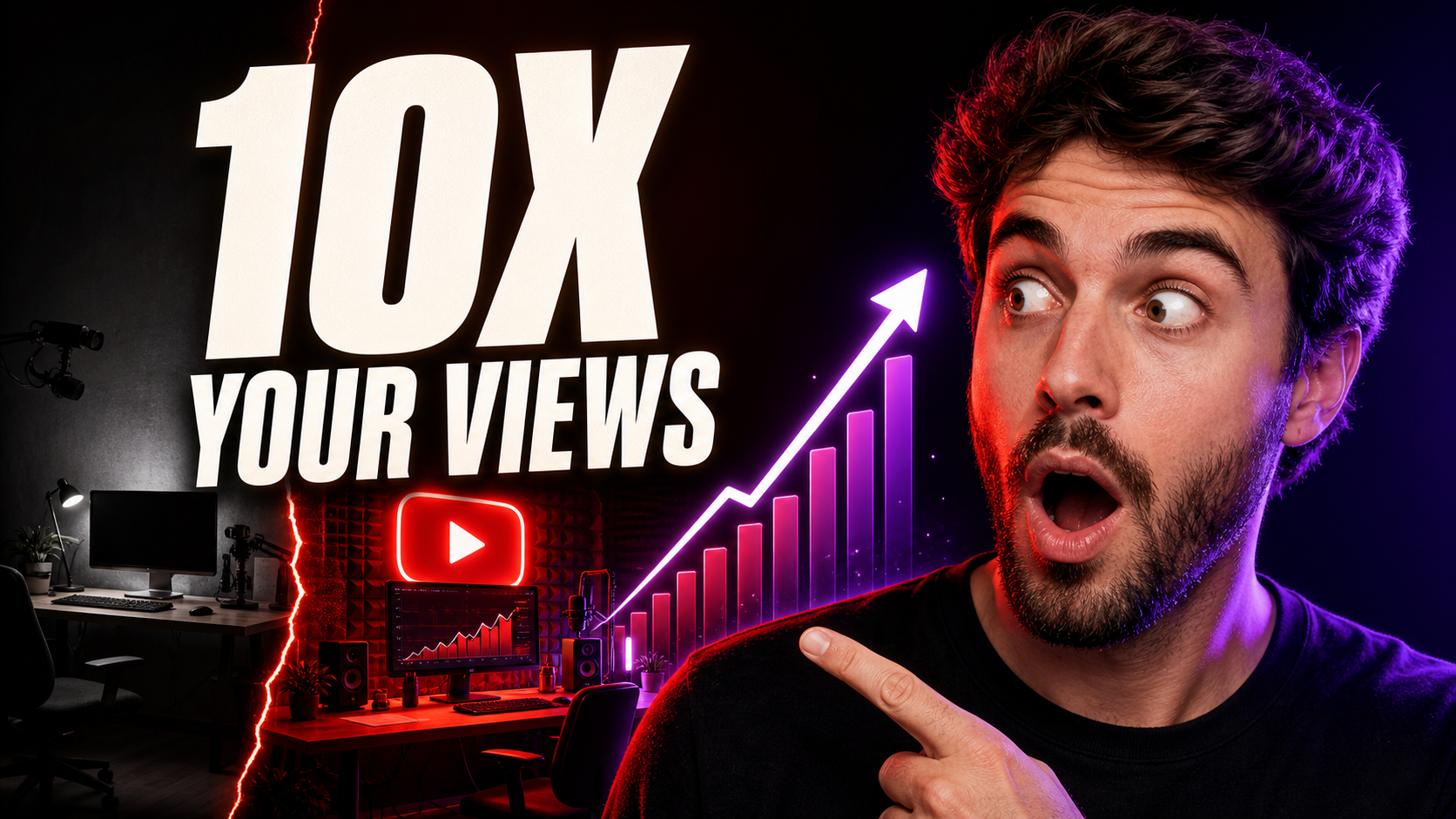
YouTube Thumbnail Generator
Create 16:9 YouTube thumbnail concepts from a prompt or reference image.
Video Motion Control
Generate videos with motion control using AI. Upload an image and a reference video to create dynamic video content.

AI Image Generator
Generate images from text prompts using multiple AI models simultaneously
AI Product Listing Image Generator
Turn a product photo or description into main images, lifestyle scenes, and ads for your online store.
Image to Prompt Generator
Upload a reference image and turn it into detailed JSON and natural-language prompts.
Upscale Image AI 4K
Upscale images to 2K, 4K, or 8K while preserving important details.
Multiple Angle Images AI Generator
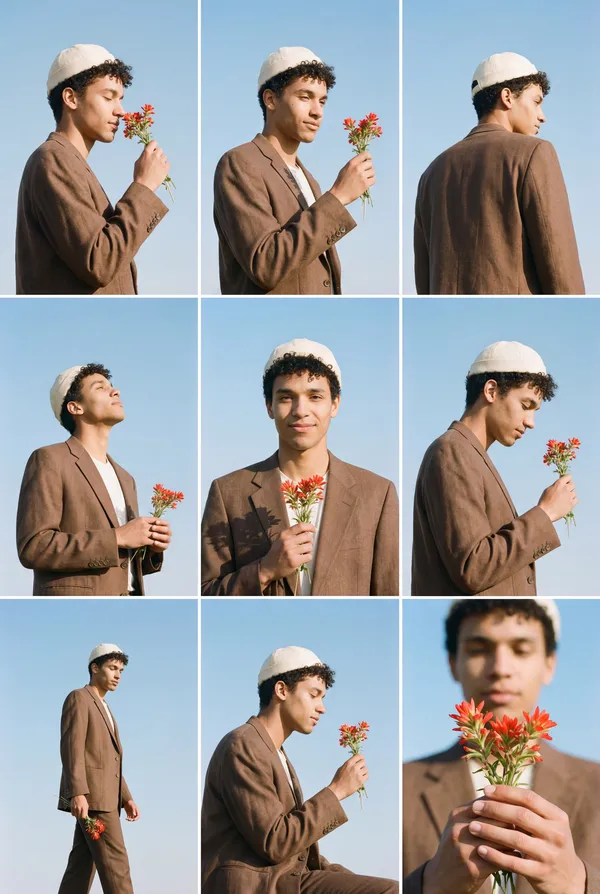
Generate 3×3 multi-angle grid images from a single photo using AI
AI Change Angle
Upload one image and change its camera angle with AI rotation, tilt, and distance controls
Split Image Into Grid
Split an image into smaller pieces and upscale each tile to HD quality
Crop & Remove Background
Crop images and remove backgrounds. Upload an image and get clean cutouts or precise crops in seconds.

Free Video Frame Extractor
Extract frames from videos instantly. No server upload required - all processing happens in your browser. Customize frame rate and create grid layouts.
Free Turn Grid to Video
Upload grid images and convert them to videos. Split grid images into frames and combine them into smooth videos. Support multiple images for seamless video creation.
AI Depth Video Generator
Turn a short video into a depth-map video for motion transfer and reference-driven AI video workflows.
AI Video Quality Enhancer
Upscale short videos to 1080p or 4K and choose 30 or 60 fps.
AI Voice Generator
Create natural AI voiceovers with text to speech, voice clone, and voice design using Qwen3 TTS.
Midjourney Prompt Helper
Generate perfect prompts with AI assistance
Frequently Asked Questions
Yes. This page is a multi-model hub: choose Veo (Fast/Quality), Kling 3.0, and Seedance 2.0 depending on the job.
Fast is designed for speed and iteration. Quality prioritizes higher detail consistency and is better for final output. Credit cost may differ by mode.
It lets you anchor the beginning and end of the video with images, so the model generates a more controlled transition and story progression.
Yes. Select 9:16 for Shorts/Reels/TikTok, or 16:9 for YouTube and landscape scenes.
Length depends on the model/mode and settings available on the page. Start simple, then iterate.
You own the videos you generate, subject to the platform’s terms and acceptable use policy.