

Cinematic live-action footage with the polished visual quality of a Korean drama. An outdoor school campus under cool-toned natural light, with steps leading up to a red-brick archway in the background. Precisely recreate the scene in {{Video 1}}: preserve every character’s movements, the rhythm of the synchronized group choreography, motion trajectories, camera movements, audio, background music, and the exact timing of every cut, achieving a perfect 1:1 match. Precise character replacement: completely replace the blue figures in the original video with the character from {{Image 1}}, while preserving all original movements, poses, and positions. Replace all the gray figures lined up on the steps with the character from {{Image 2}}. Keep all original poses and synchronized dance movements—including tilting their heads back, bending forward, and swaying their bodies—completely unchanged.
STORM II AI video generator
Make a STORM II AI video with two images. Your lead takes the front-and-center spot, and your second character fills every row of dancers on the steps. The dance reference and prompt are preloaded—swap in your images and generate.
Add reference images (with key frames, max 9 images total). Each file under 30MB.
MP4/MOV, each 2-30s, max 3 clips, combined <=30s.
MP3/WAV/AAC/M4A/OGG, max 3 clips, combined <=30s.
See what a STORM II AI video looks like
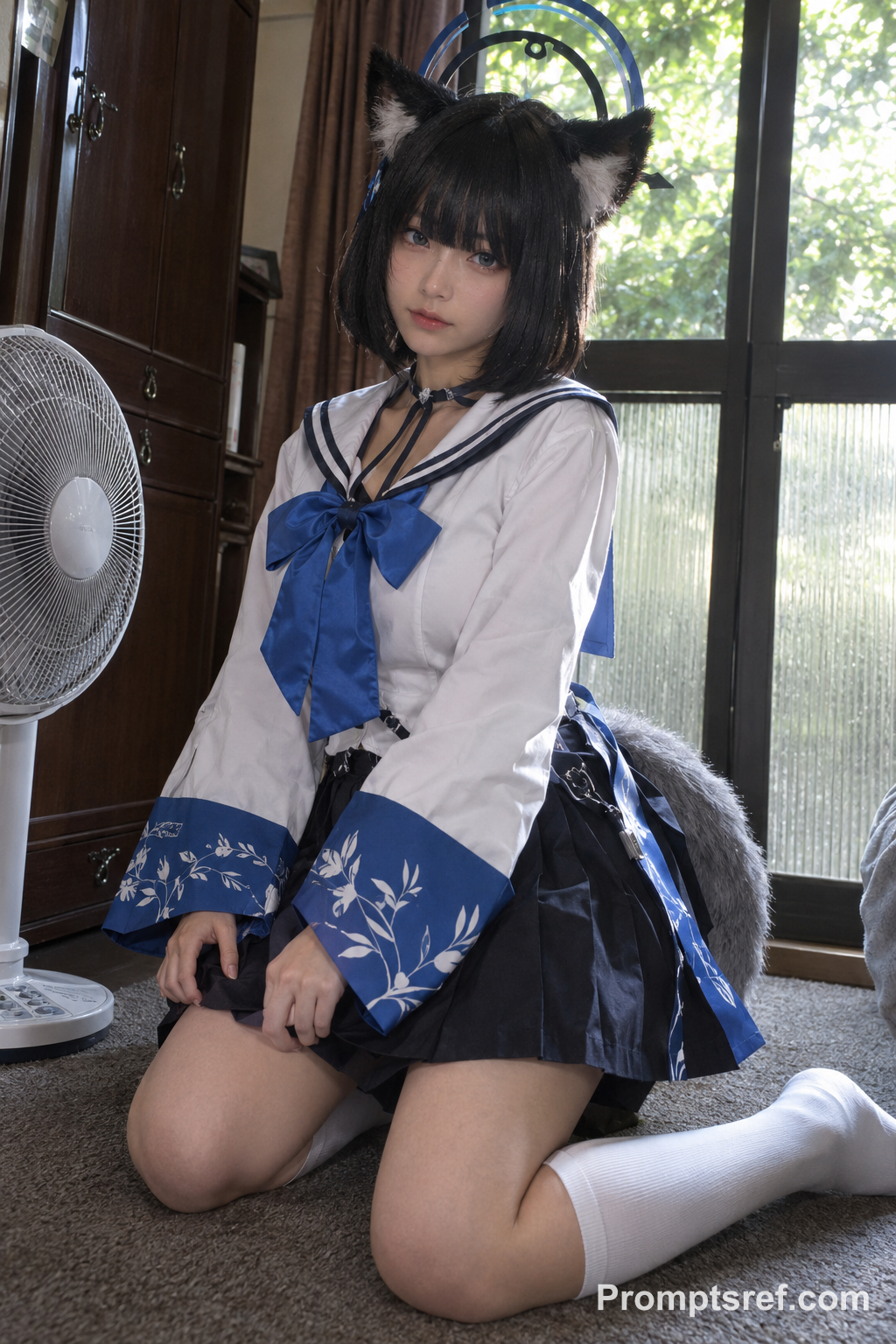
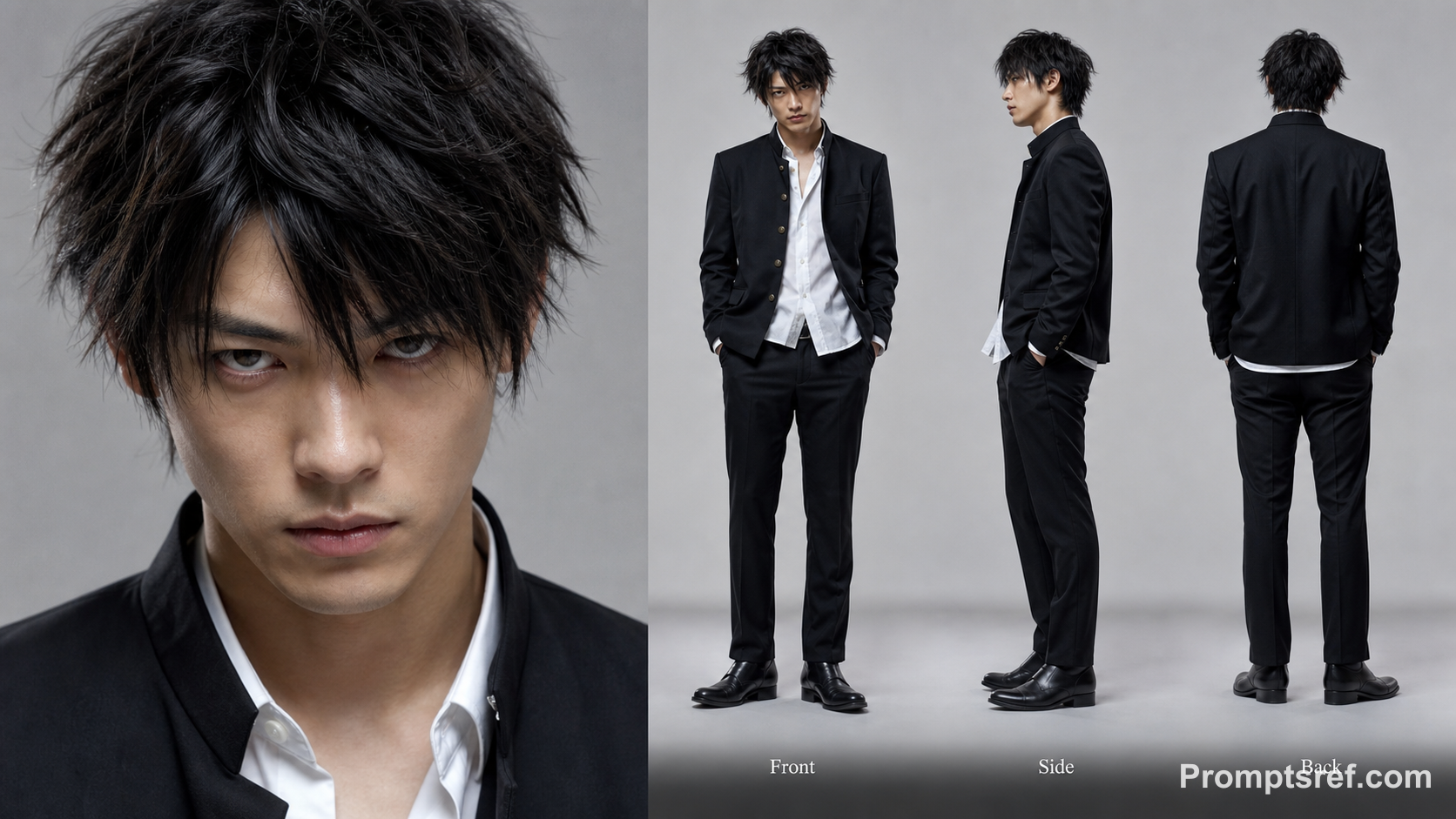
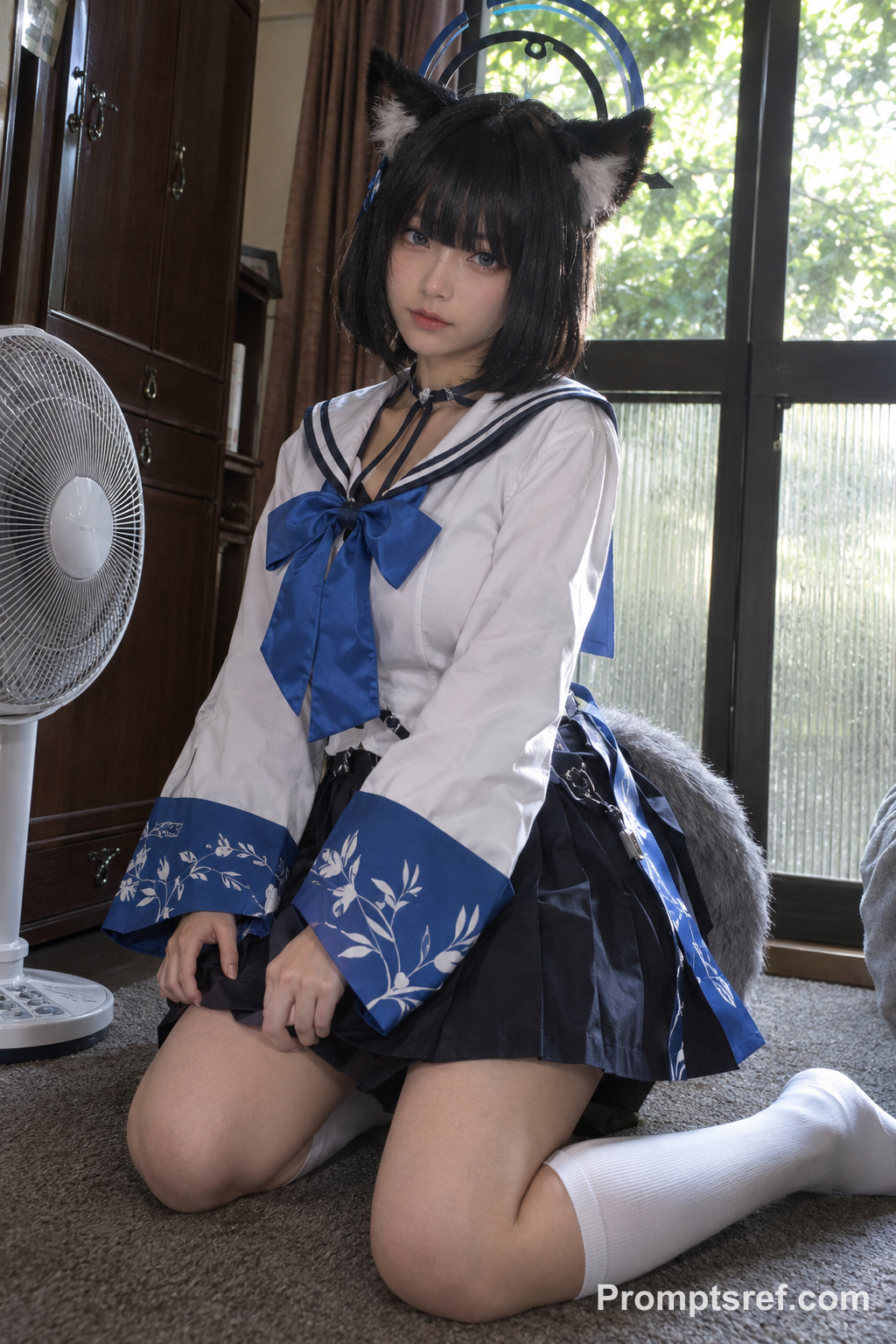
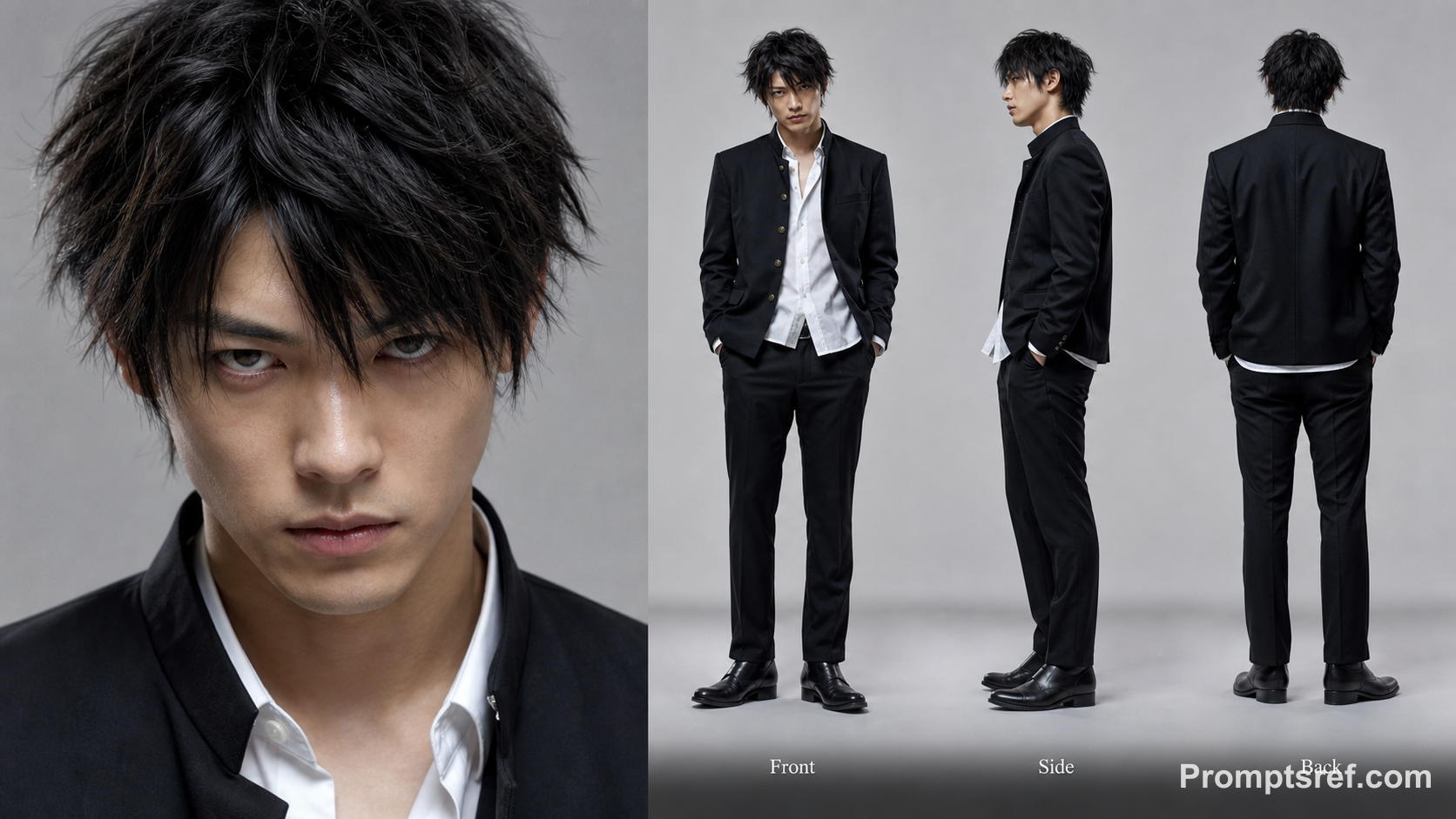
The schoolyard steps, the red-brick arch and the rows of dancers moving in sync all come from the reference clip. In this example, the girl in the sailor uniform comes from Image 1 and replaces the blue figure in front. Every dancer on the steps comes from Image 2. The choreography, camera moves and cut timing follow the reference, so the clip looks like the trend while the cast is entirely yours.
How to make a STORM II AI video in 3 steps
The reference clip and the prompt are ready. All you need are two images: one for your lead and one for the crowd.
Add a lead for your STORM II AI video
Replace Image 1 with the person or character you want in front. Use one subject with a clear face and a full or half-body view, so the outfit carries through the dance.
Add a crowd for your STORM II AI video
Replace Image 2 with the character that should fill the rows on the steps. A character sheet with front, side and back views works best because the crowd turns, bends and sways. Leave the reference video in place.
Generate and download your STORM II AI video
The preset uses Seedance 2.5 at 480p, with automatic length, adaptive aspect ratio and audio on, so the result follows the reference. Switch to 720p for a sharper clip. Check the credit estimate, generate, then preview and download the MP4.
Choose the right images for your STORM II AI video
For the lead, choose an image where the face is sharp and the outfit is easy to read. Anime-style characters, cosplay photos and portraits all work. For the crowd, choose one character with a simple, distinctive look, like a dark suit or school uniform. With dozens of copies on screen, a clean silhouette looks better than busy details. Avoid group photos, heavy filters and covered faces in either image. If faces drift, try a sharper image and check the front rows before you post.
STORM II AI video ideas to try
Put yourself in front and a friend in the crowd, or the other way around. Cast an original character as the lead with its rival filling the steps. Brands and creators can use a mascot as the lead with a team uniform in the rows. Turn your own character sheets into a full cast: one image covers the whole crowd.
Why make your STORM II AI video on Promptsref?
The reference clip and a tested prompt are already loaded, so you do not have to find footage or write instructions for timing and positions. Swap in two images, check the credit estimate before generating, and switch between 480p and 720p as needed. When it is done, preview the clip and download the MP4 for editing or posting.
Other AI Video Generators
Rosé & Bruno Mars APT. AI Video Generator
Upload two photos and the Rose and Bruno Mars APT AI video generator puts both of you into the pink-studio APT choreography — one photo takes Rosé's role, the other takes Bruno Mars'.
Hotel Lobby AI Rap Duo Video Generator
Upload 2 photos—friends, pets, or characters—and this free Hotel Lobby AI Rap Duo Video Generator drops them into the iconic orange booth to trade bars like Quavo & Takeoff.
AI Gugugaga Video Generator
Turn one Gugu Gaga Penguin image into a short, share-ready video. Upload a reference, choose a ready-made story prompt, and generate with compatible motion, audio, and aspect-ratio controls.
AI Brainrot Generator
Turn an absurd idea, a first frame, or character reference images into a short, chaotic AI meme video. Start with an example, replace its image, and push the scene in your own direction.
AI Fruit Story Video Generator
Just enter a prompt or upload character images. AI turns them into viral-style fruit meme videos with motion, dialogue, and sound.
STORM II AI video FAQs
It is a take on the STORM II crowd-dance trend: a lead in front with rows of dancers moving in sync on the steps behind. This template keeps the dance and camera work from the reference clip and replaces both the lead and the crowd with your characters.
Two. Image 1 becomes the lead in front, and Image 2 becomes every dancer on the steps. You can use the same image twice if you want a whole cast of one character.
No. The prompt is already set to recreate the reference scene and assign Image 1 and Image 2 to the right roles. You can edit it, for example to change the setting or the lighting, but keep the {{Video 1}}, {{Image 1}} and {{Image 2}} tags.
Browsing the template and examples is free. Generating requires an account and credits. The estimate next to Generate depends on resolution, output length and the length of the reference clip.
Yes. Audio is on by default, and the prompt asks the model to follow the reference clip’s audio and rhythm. The generated sound may differ from the track you know. If you need a specific song, mute the clip and add a licensed sound in TikTok, Reels or CapCut.
The preset uses automatic length, so the output follows the reference clip. Seedance 2.5 accepts reference clips up to 30 seconds. Choosing a fixed length can change how closely the dance timing matches.
The preset uses an adaptive aspect ratio, which keeps the reference’s landscape framing and the full crowd in view. You can choose 9:16 before generating, but expect a tighter crop of the rows on the steps.
Your images guide the characters, but results vary, especially for small faces in the back rows. Use sharp, unfiltered images, and a character sheet for the crowd. If a take distorts faces or hands, generate again or try clearer images.
After generation, preview the result and use the download button to save the MP4. You can then trim it, add captions or change the music in your editor.
No. Promptsref is an independent creation tool. This template is inspired by the crowd-dance trend and is not affiliated with or endorsed by the original creators. Only use images you have the right to use.
Create your own STORM II AI video
Pick a lead, pick a crowd, and generate your version of the scene.