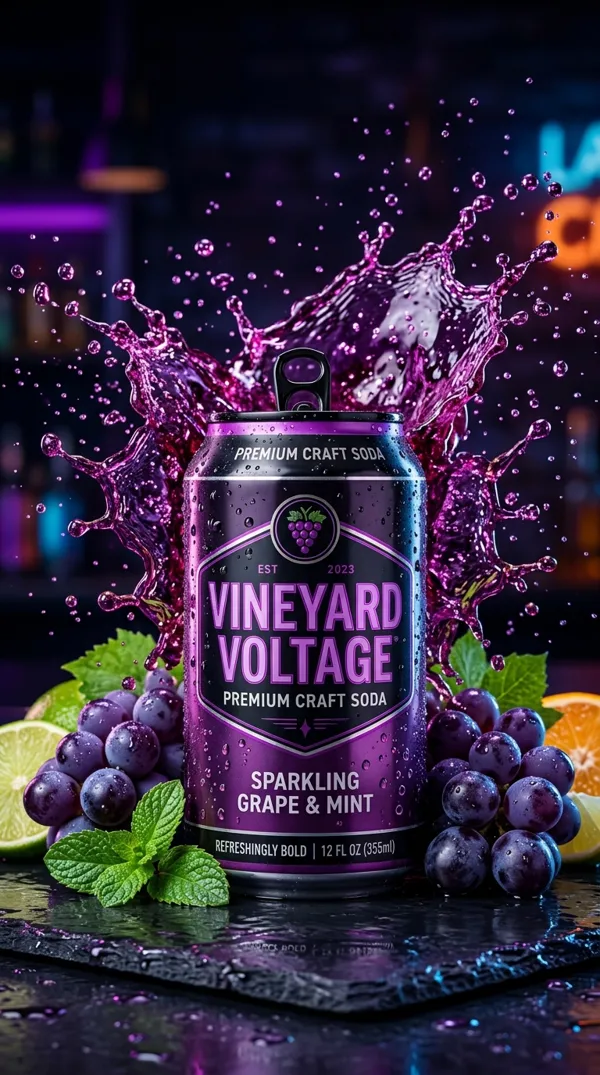
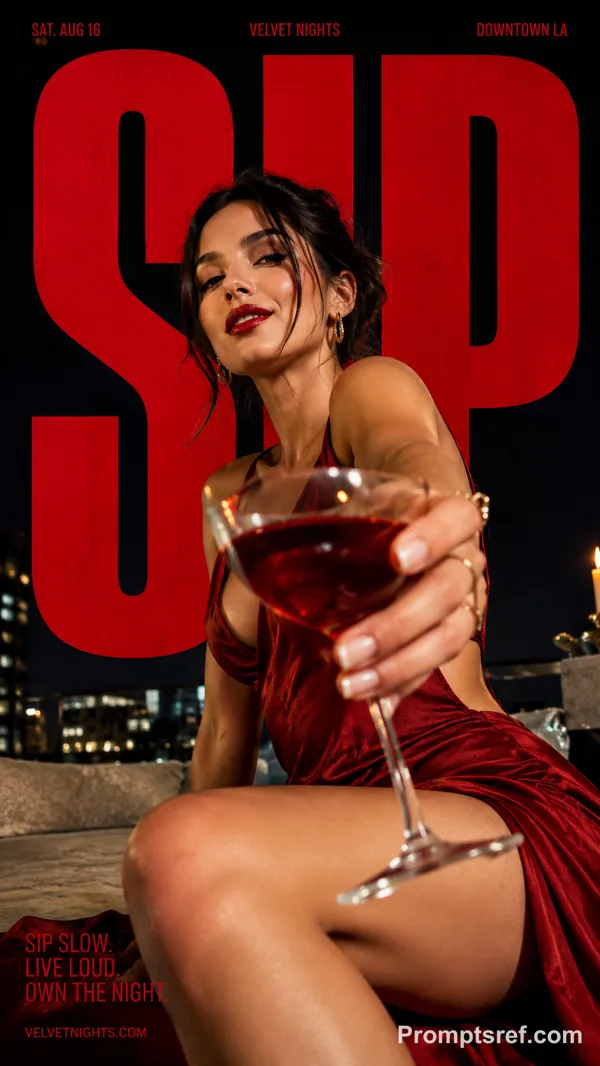
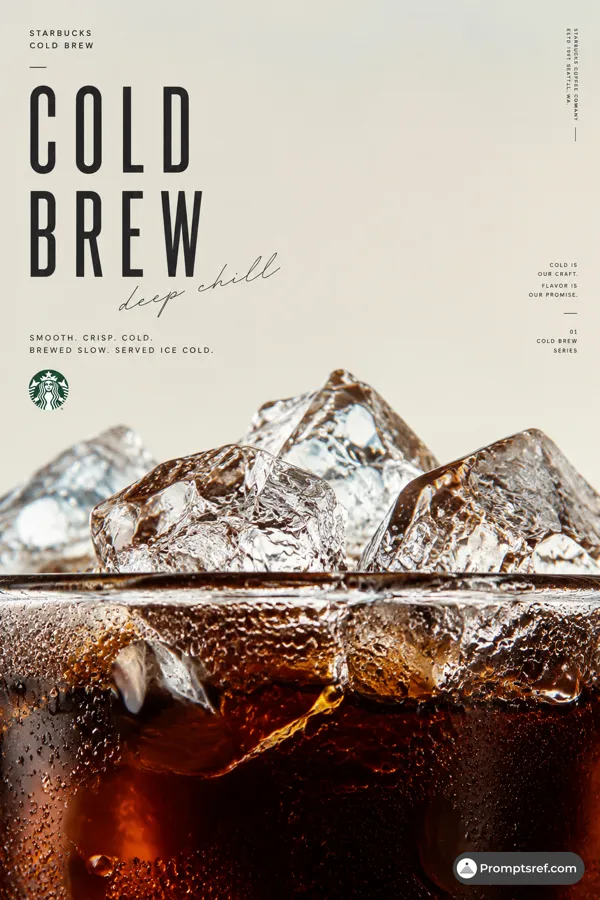
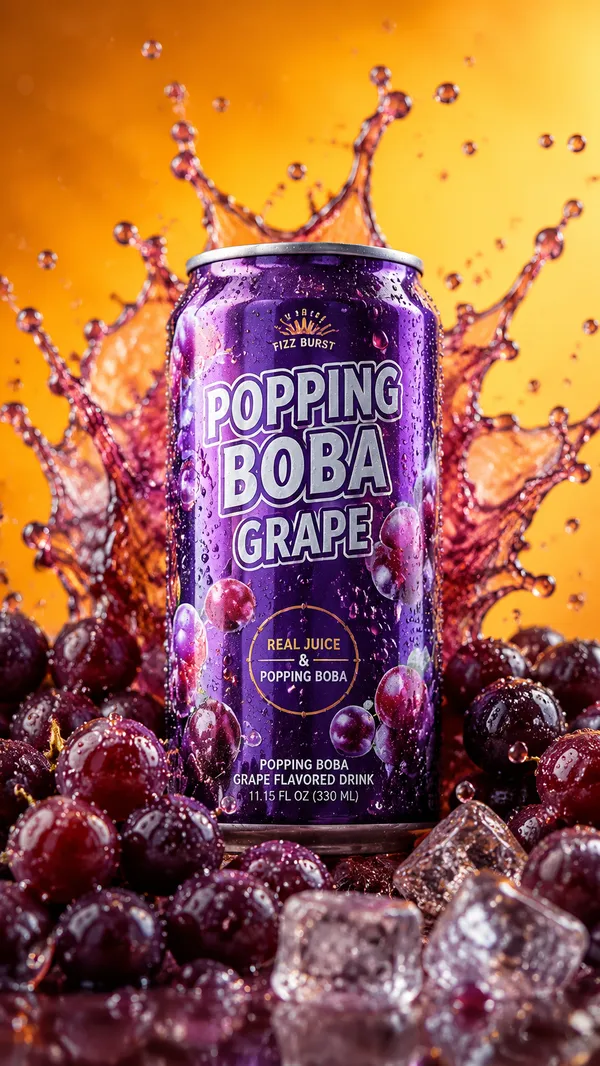
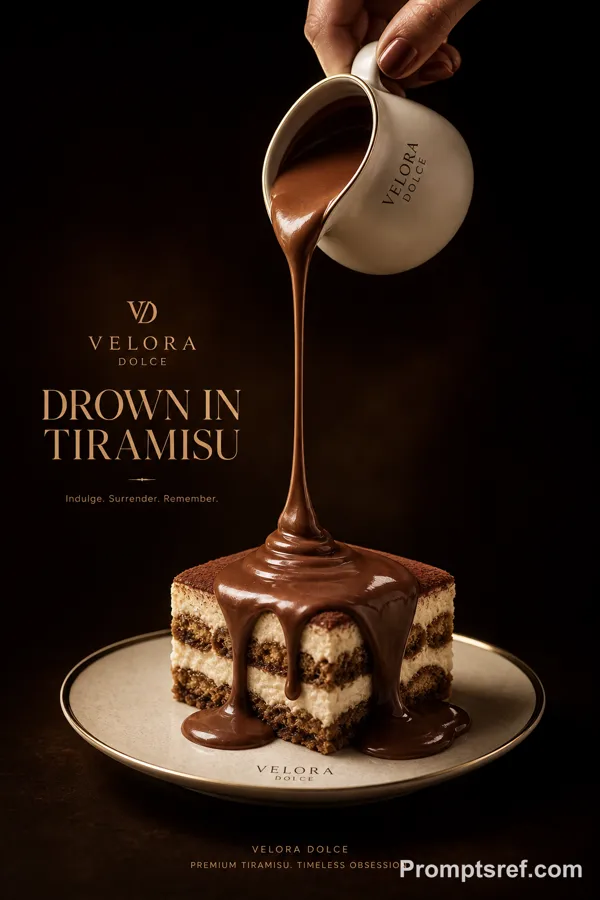
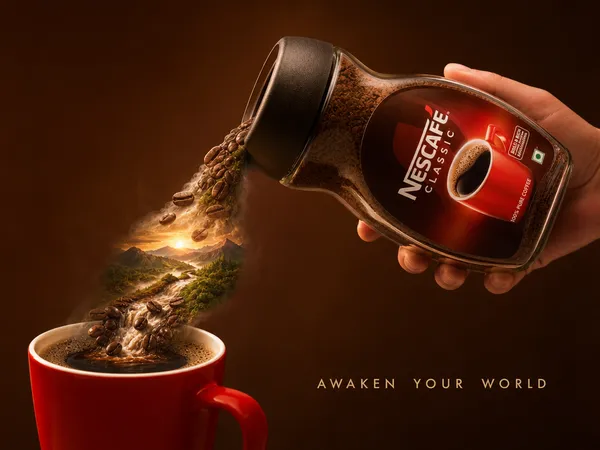
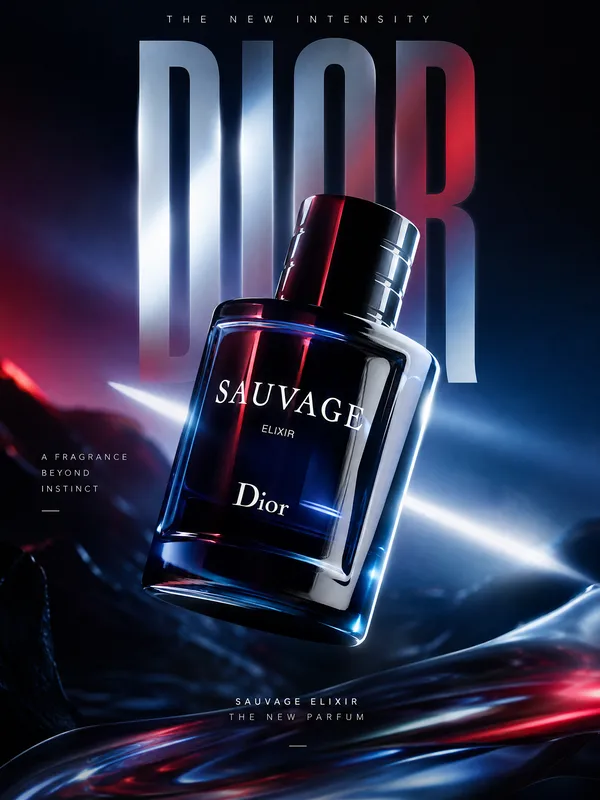
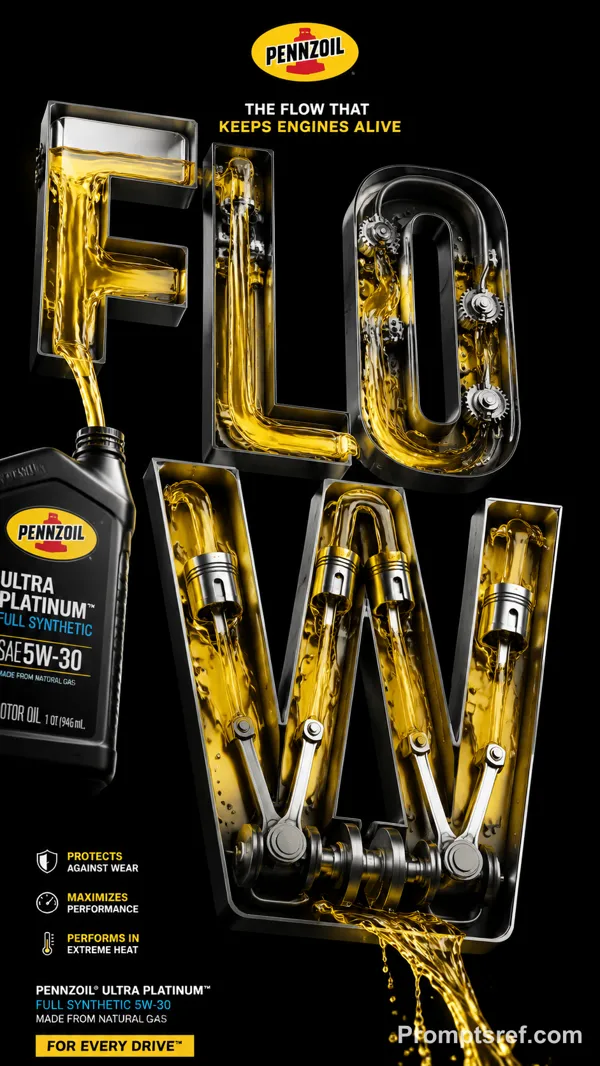
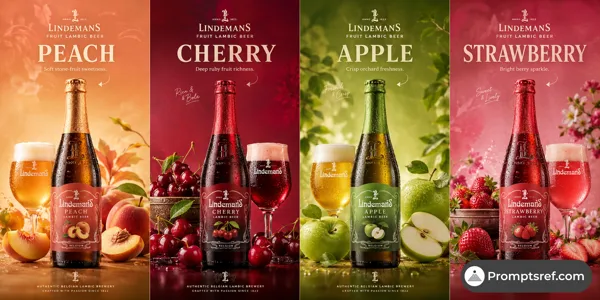
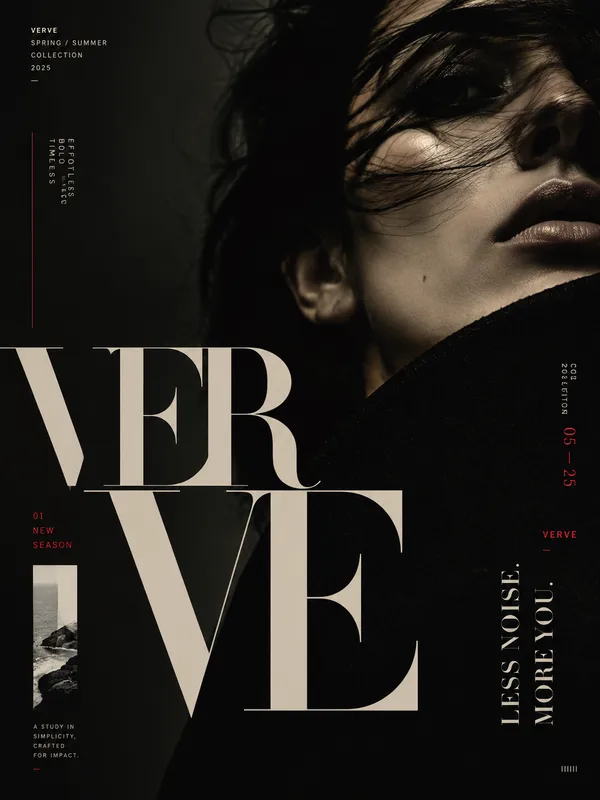
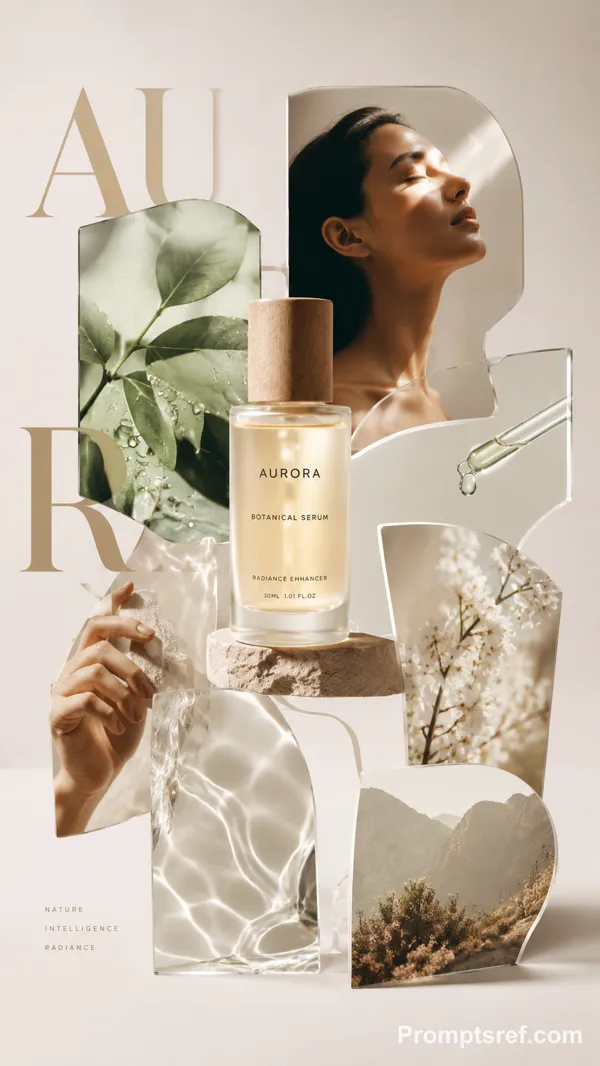
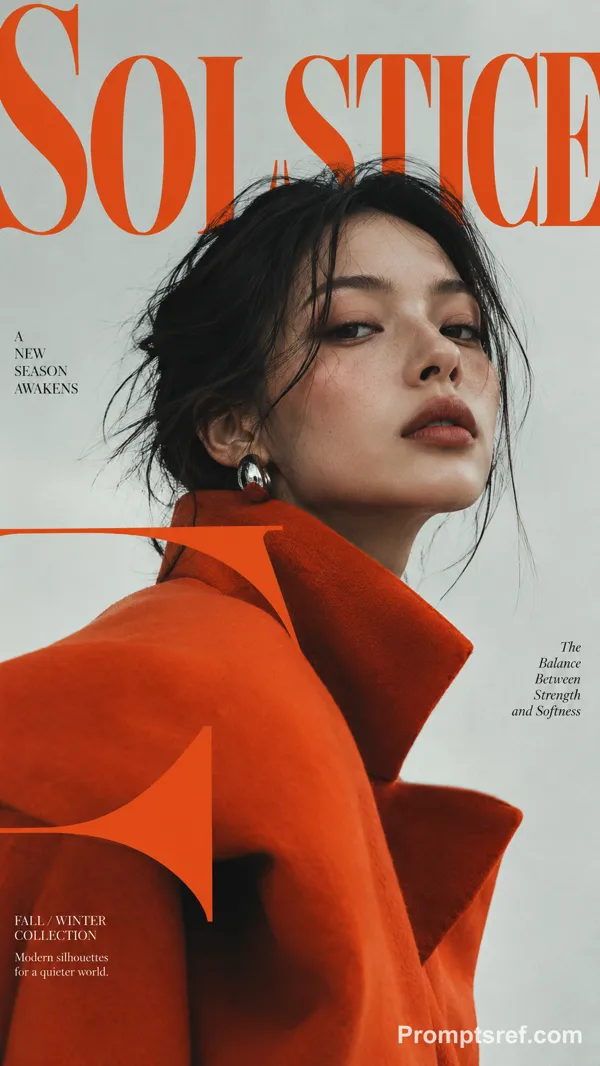
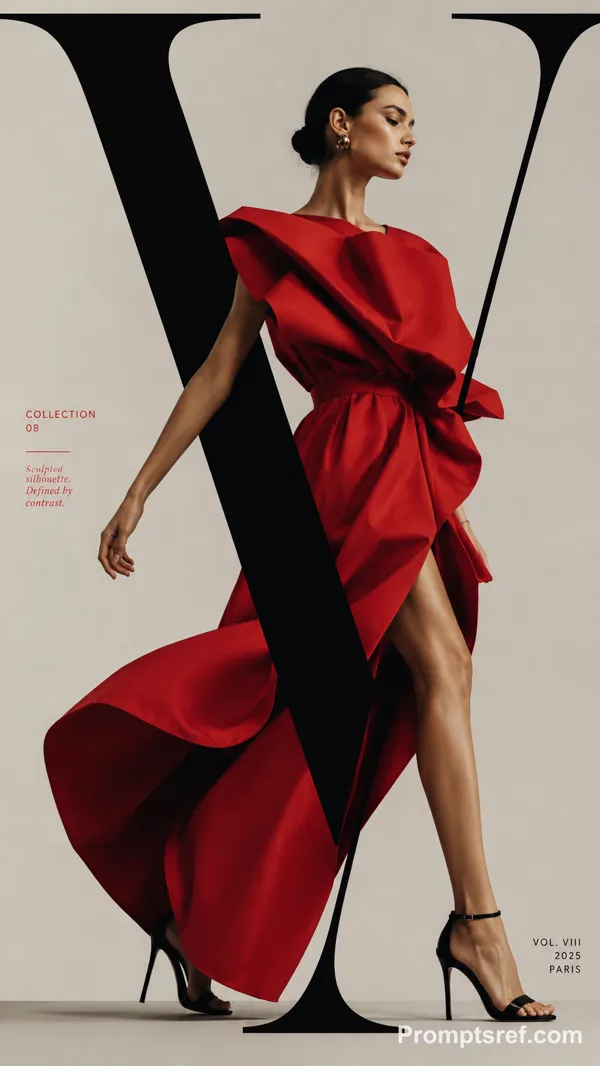
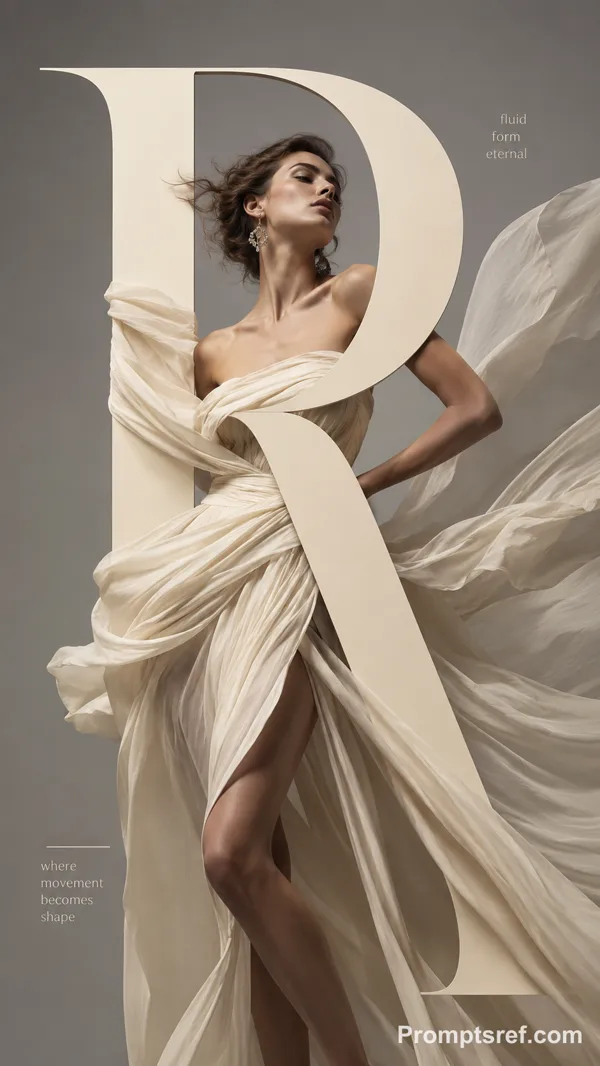
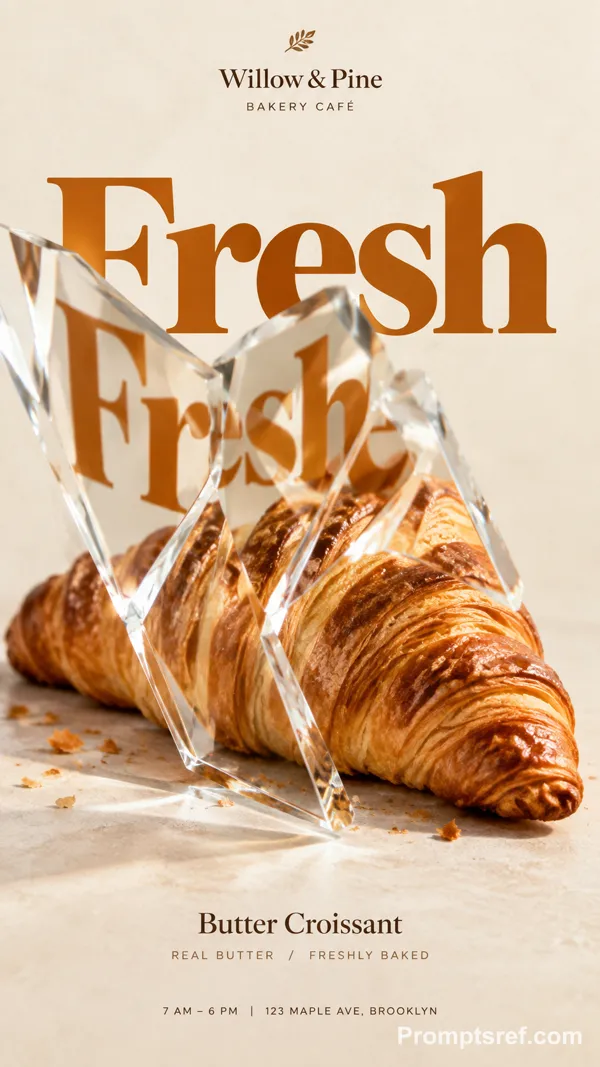
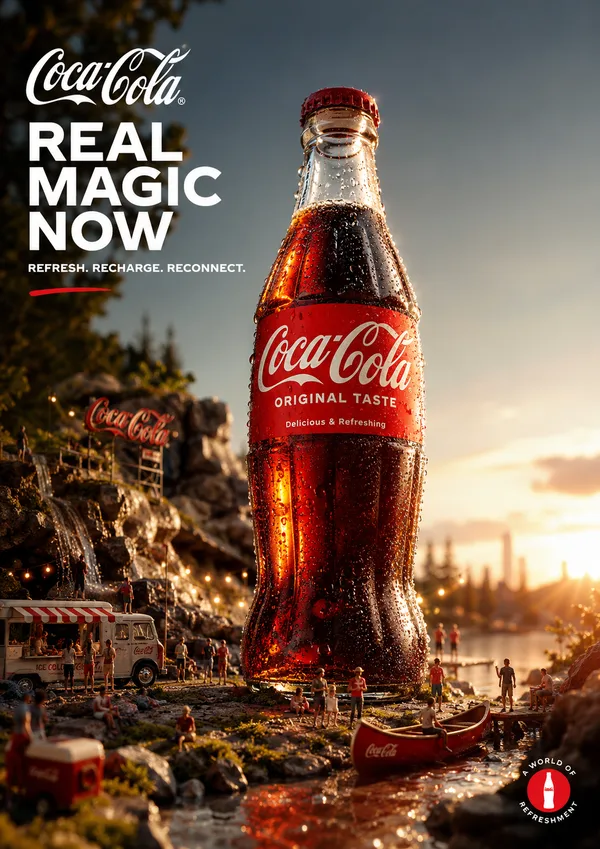
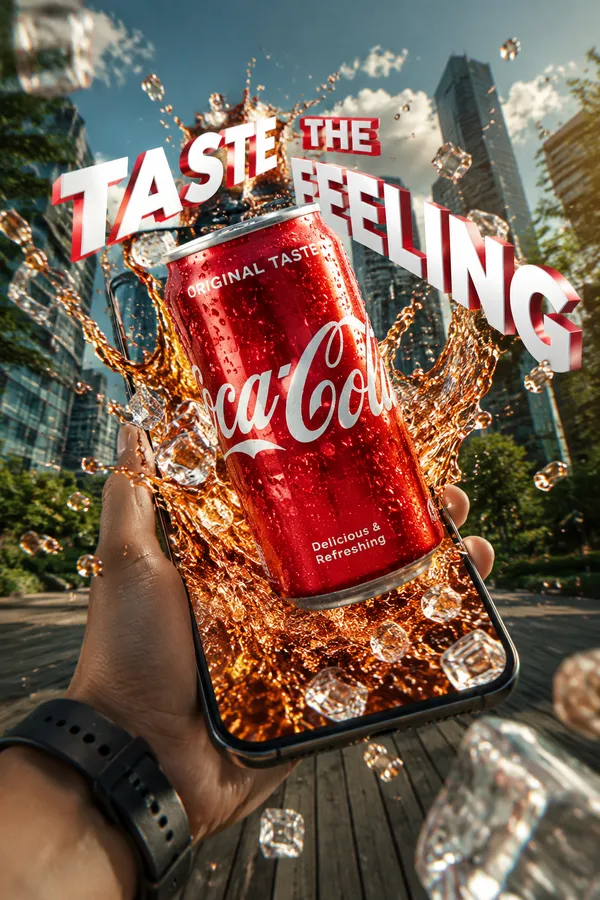
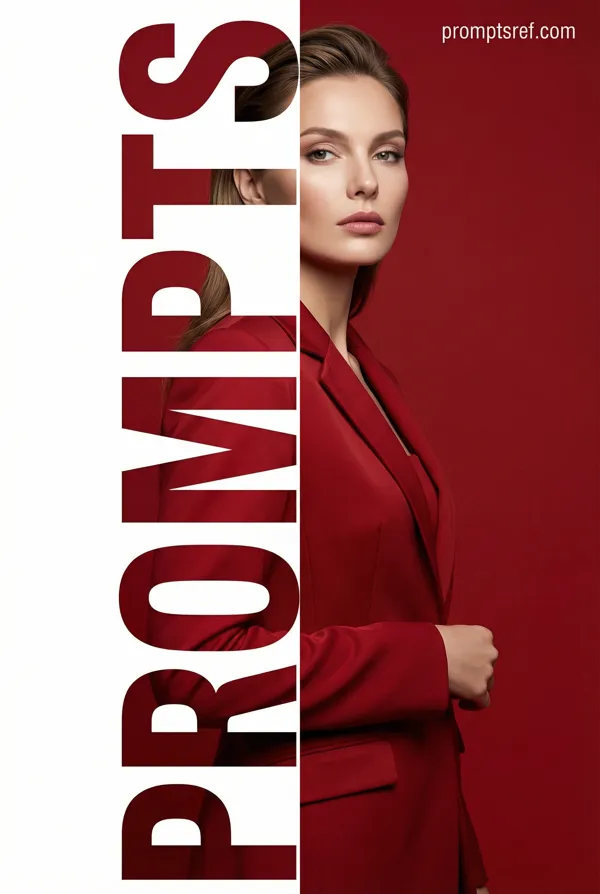
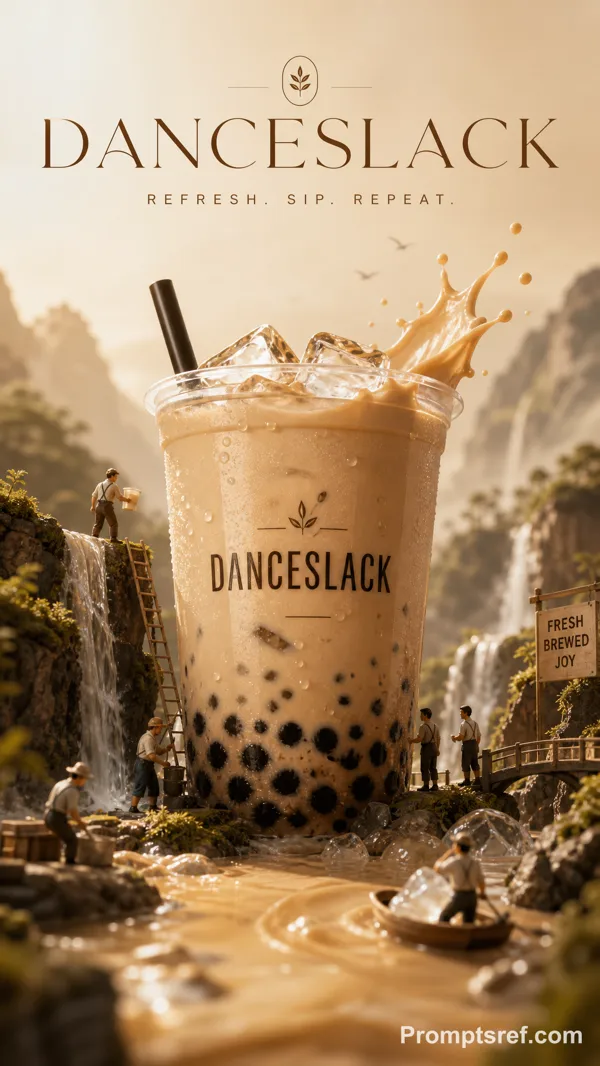
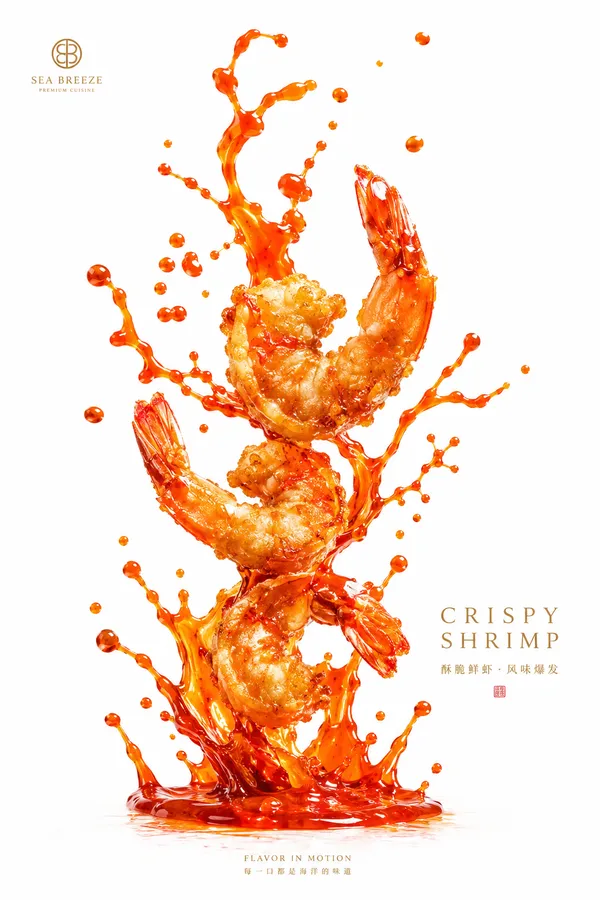
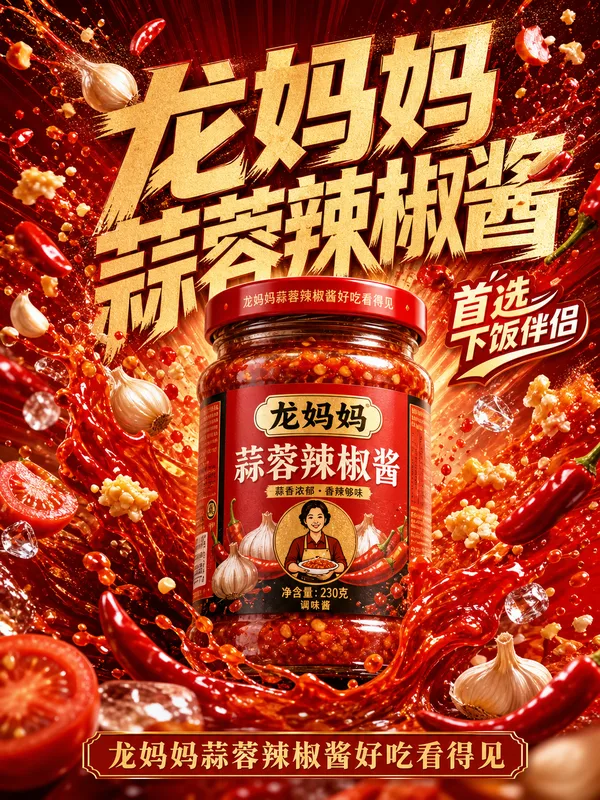
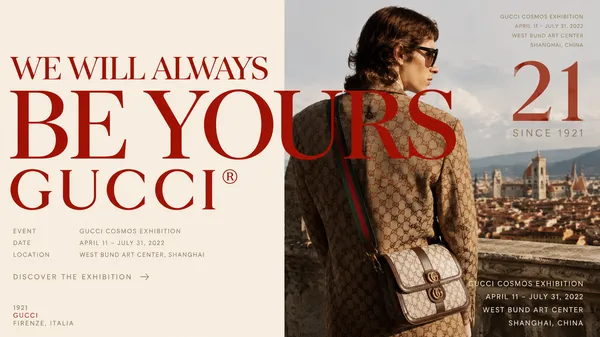
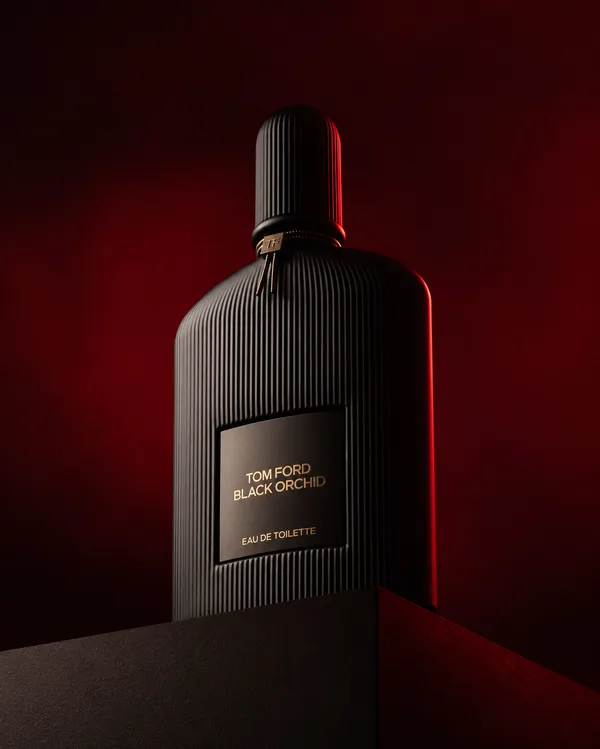
GPT Image 2.0 Prompt - Liquid Typography Product Poster

- Model
- GPT Image 2.0
- Aspect ratio
- auto
- Quality
- 1K
Prompt
[PRODUCT / MATERIAL]: {red wine / coffee / sparkling water / ink / ...}
[BRAND]: {brand name}
[PRODUCT NAME]: {product name}
[CONTAINER]: {bottle / pouch / can / dropper / ...}
[PALETTE]: {background + liquid + typography colors}
[LIQUID BEHAVIOR]: {splash / bubbles / swirl / diffusion / refraction / ...}
[INFO TEXT]: {2–4 short product lines}
[FORMAT]: 9:16 vertical
Create a refined experimental typography poster where letters behave like real physical objects interacting with liquid.
Place the {CONTAINER} near the top edge, partially cropped and tilted downward. Let letters from {BRAND} and {PRODUCT NAME} pour out, fall through generous negative space, and enter {PRODUCT / MATERIAL}.
Give the falling letters controlled randomness through varied scale, rotation, spacing, overlap and depth. Keep a clear downward motion, with the type becoming denser near the liquid surface.
Make the liquid boundary the main visual event. As letters enter the liquid, apply {LIQUID BEHAVIOR} through realistic refraction, bubbles, drag, partial occlusion, distortion or fluid diffusion. Some letters can cross the surface, with their underwater portions visibly affected by the medium.
Follow a clear visual rhythm:
release → fall → gather → impact → transform
Keep splashes elegant and restrained. Use transparent and concentrated liquid layers, subtle depth, and visible negative space rather than heavy fluid effects.
Use {PALETTE} to create a slight contrast between the upper air space and lower liquid space. Add only a small editorial information area using {INFO TEXT}.
Overall look: minimal, premium, editorial, experimental, physically believable and detailed up close while remaining clear at thumbnail size.
Avoid heavy 3D type, random scattered letters, excessive copy, oversized splashes, clutter, or generic commercial-ad styling.
Remixes
RemixNo remixes yet. Be the first to make your own version.
Use this image prompt
- 01
Start with the prompt
Copy the prompt, or open it with the generate button.
- 02
Make your changes
Adjust the subject, setting, or details. Add reference media if needed.
- 03
Check before generating
Review the model and output settings. Results can vary between generations.