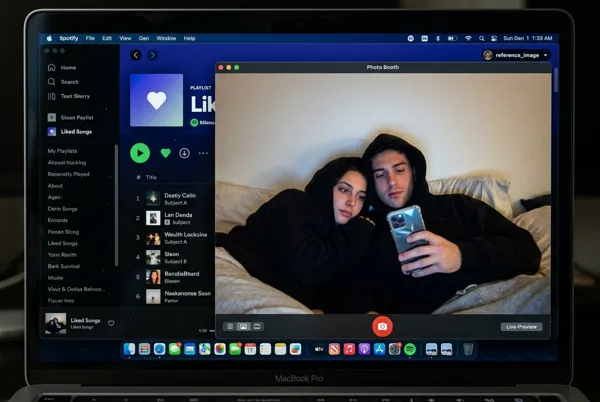
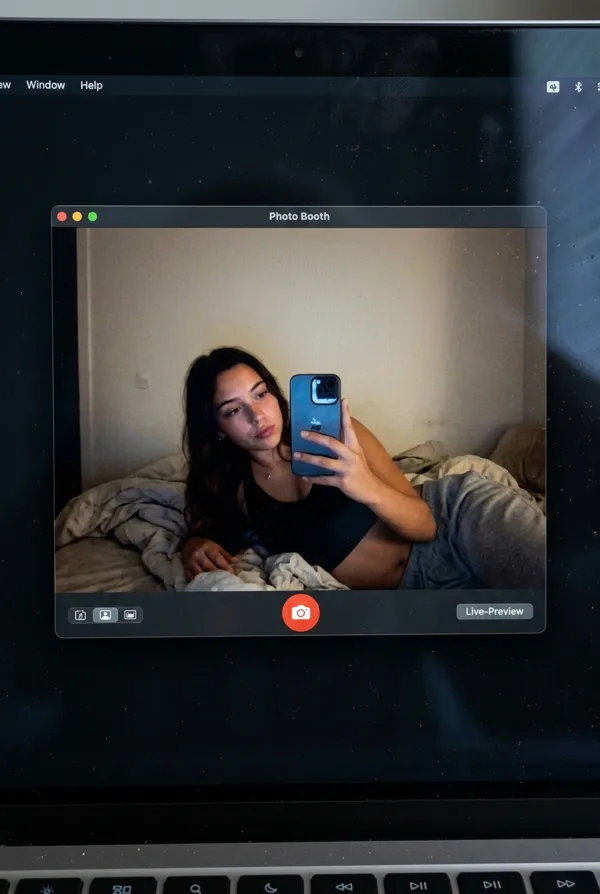
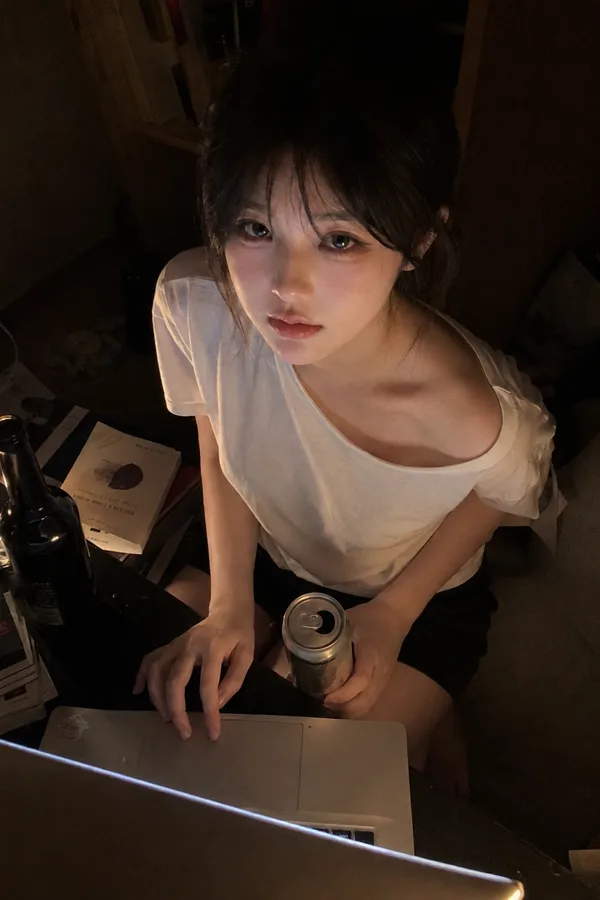
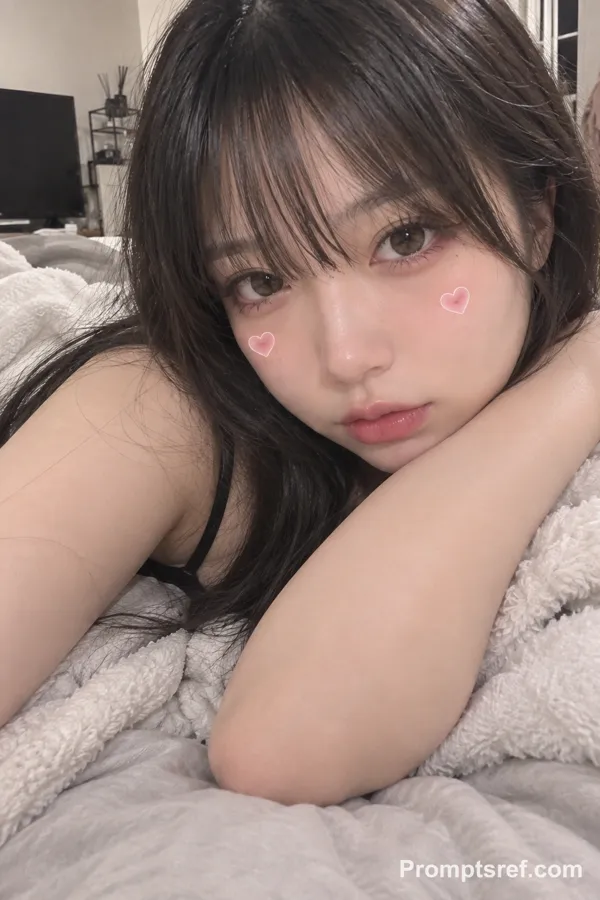
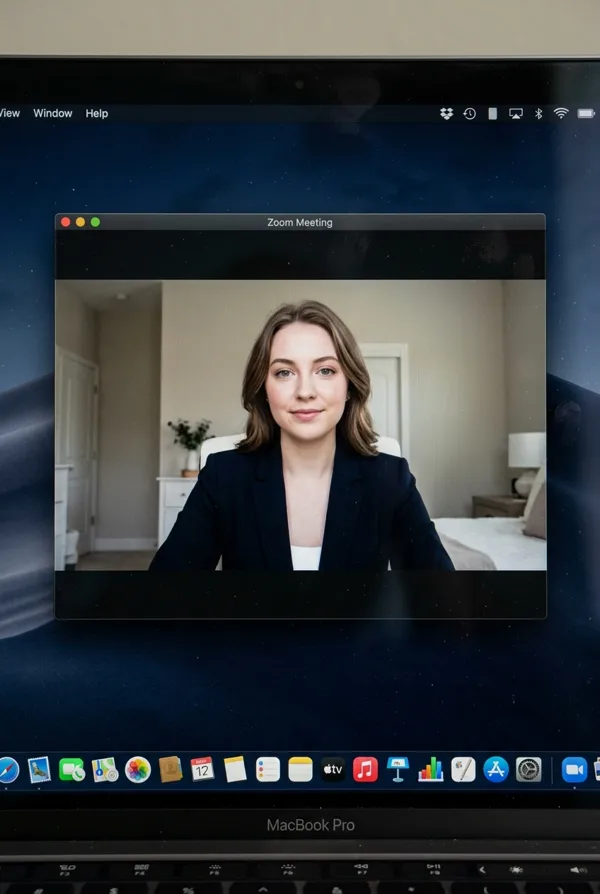
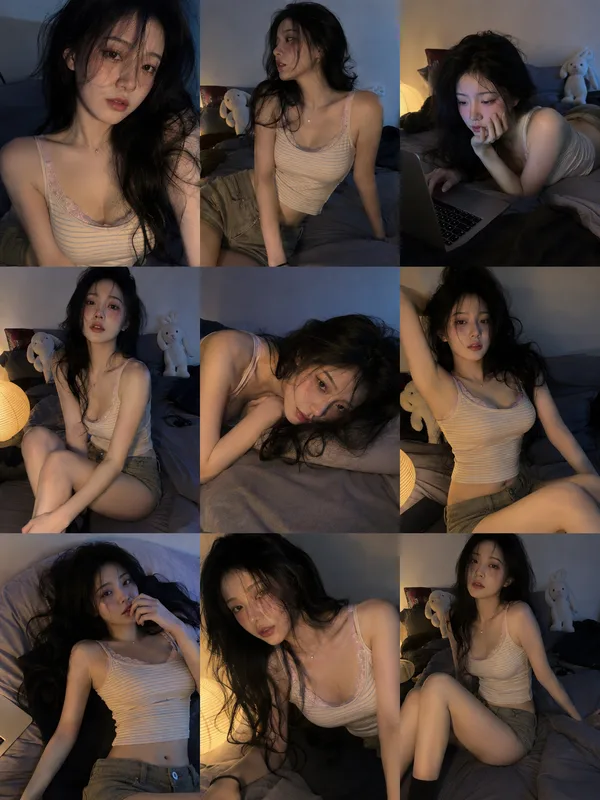
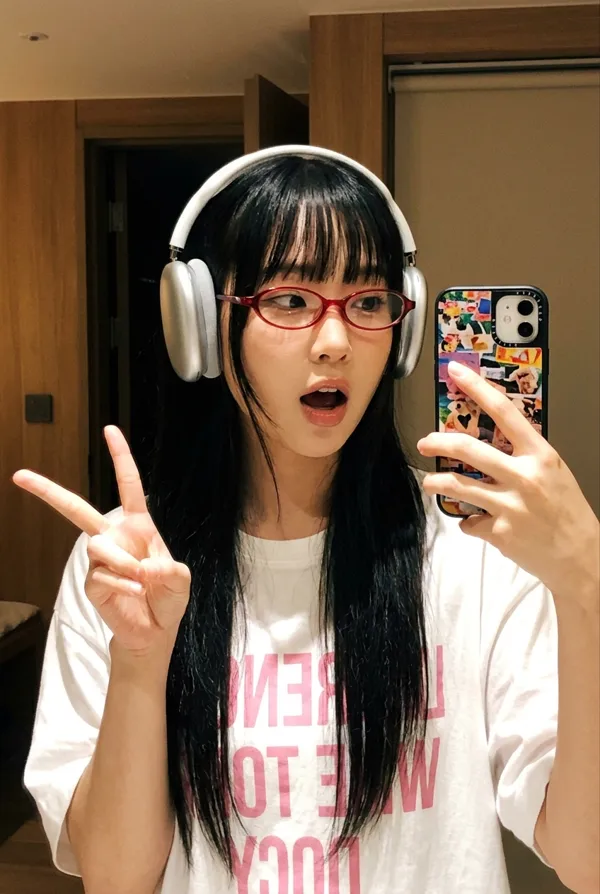
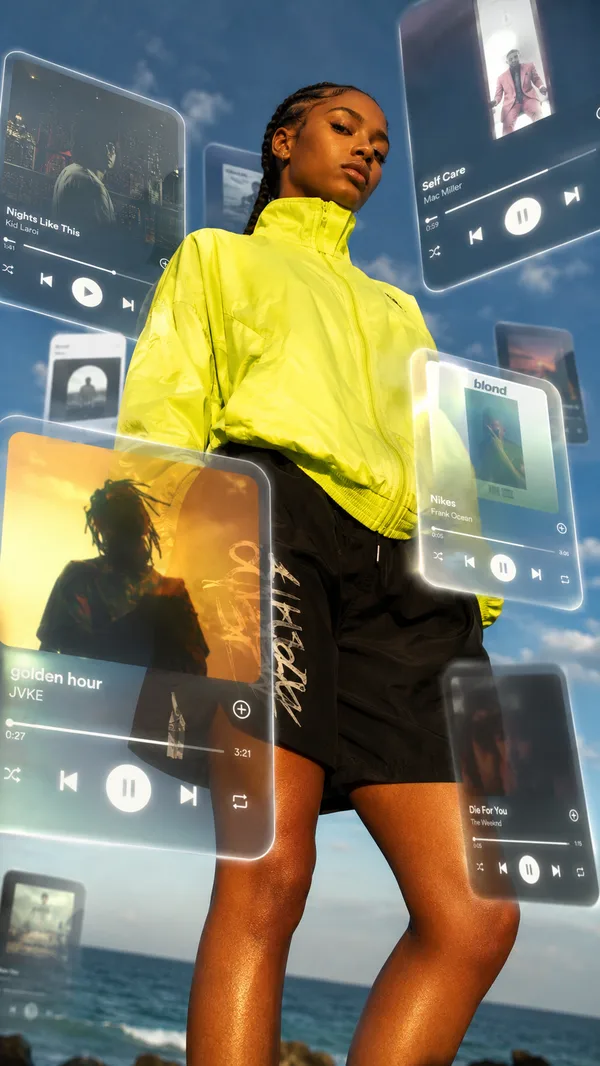
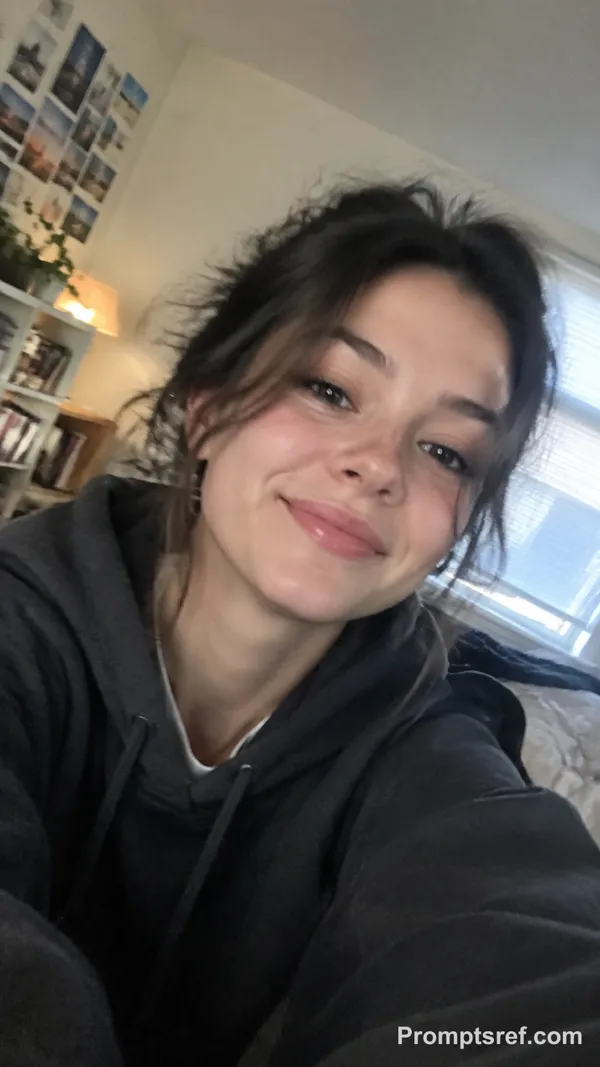
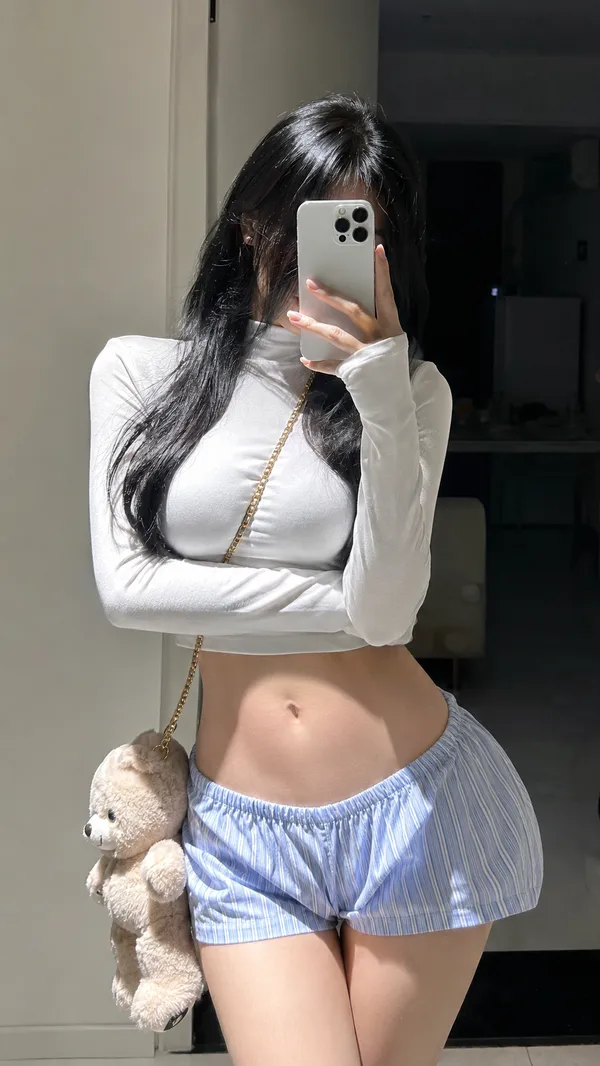
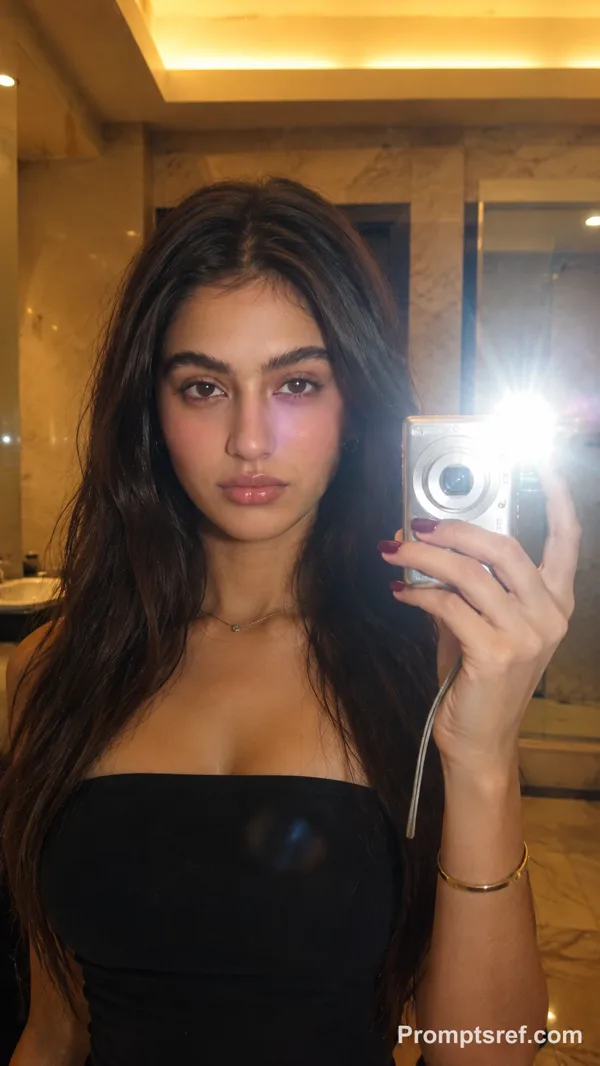
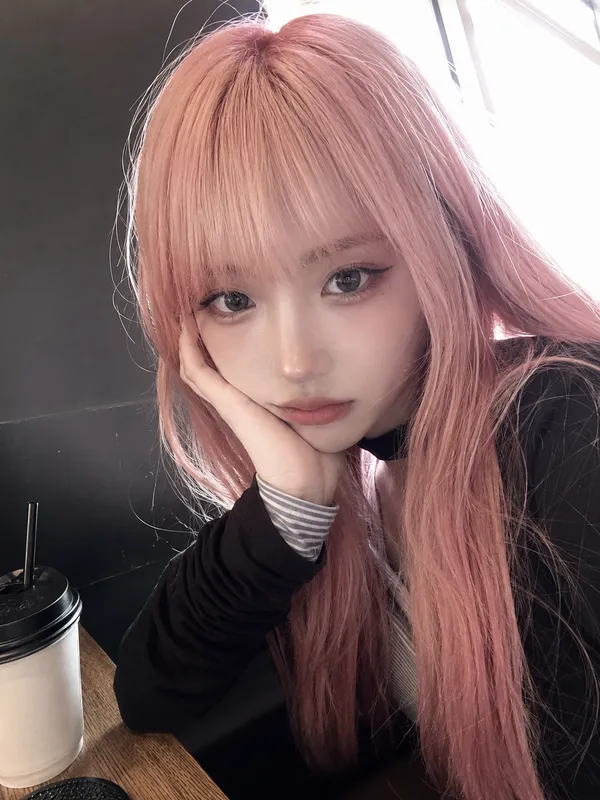
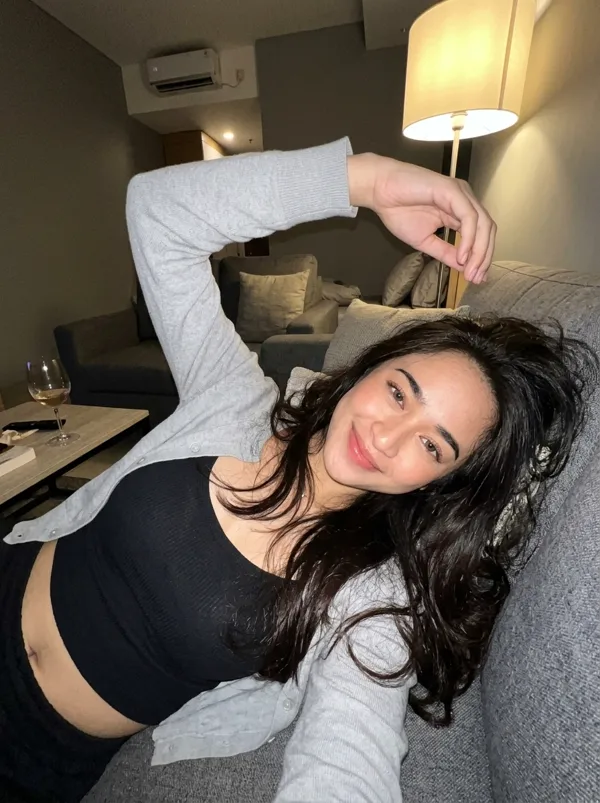
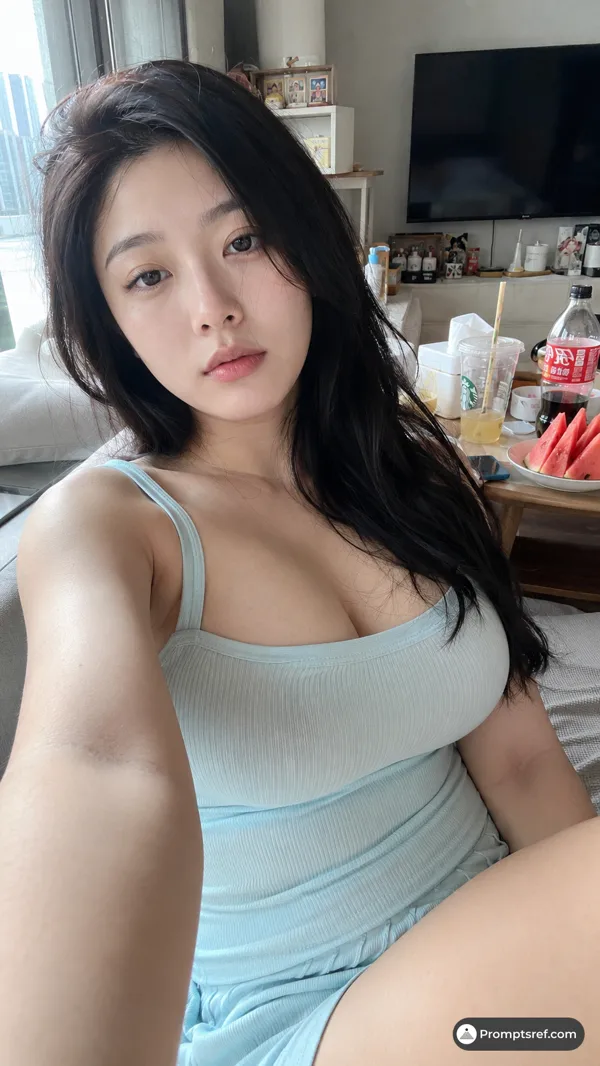
GPT Image 2.0 Prompt - MacBook Photo Booth Bedroom Screen Photo

- Model
- GPT Image 2.0
Prompt
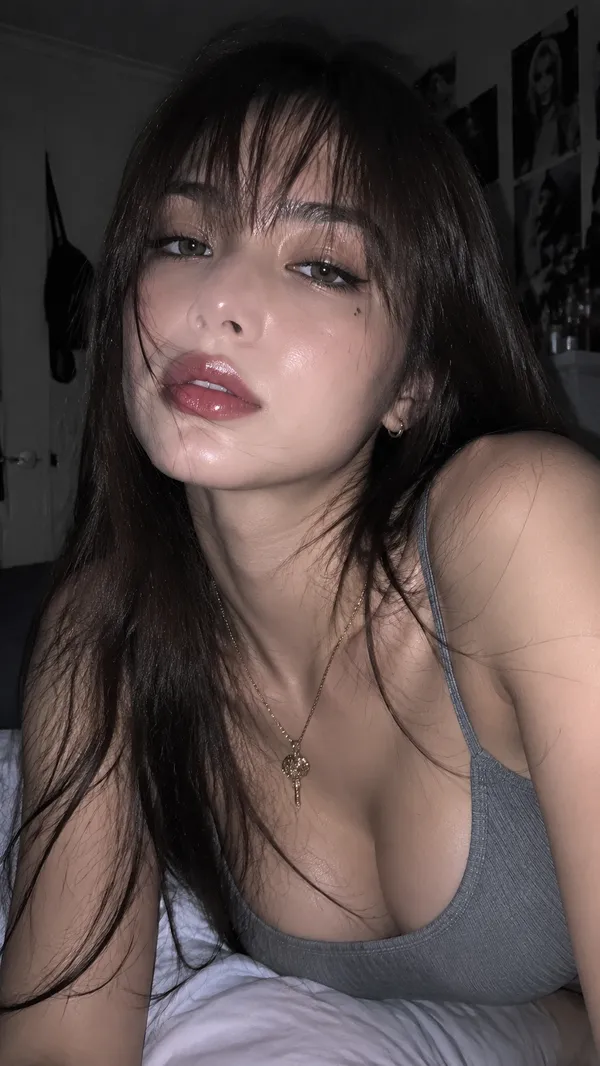
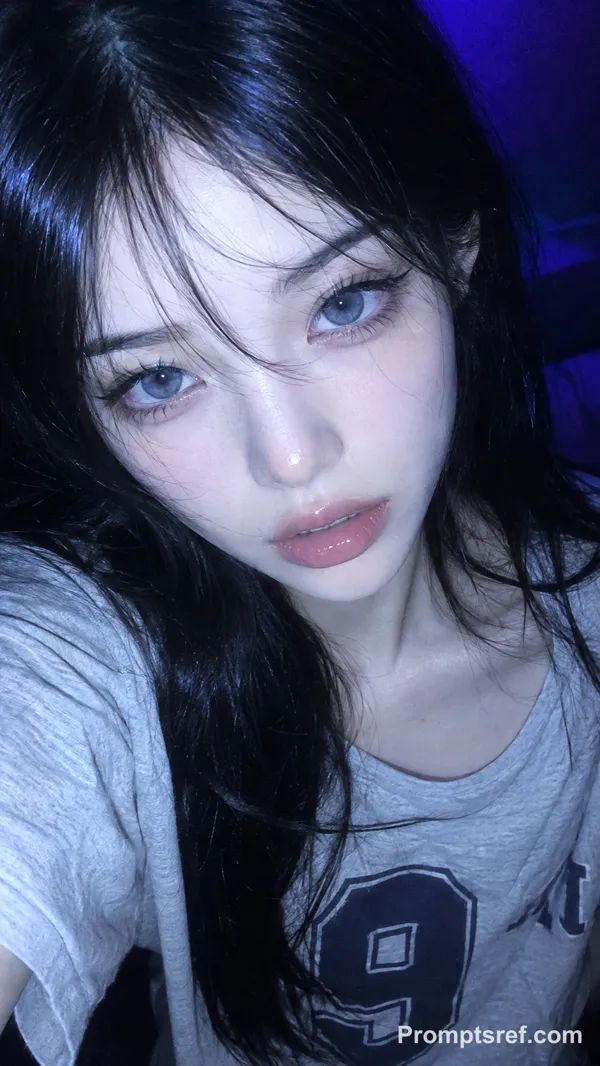
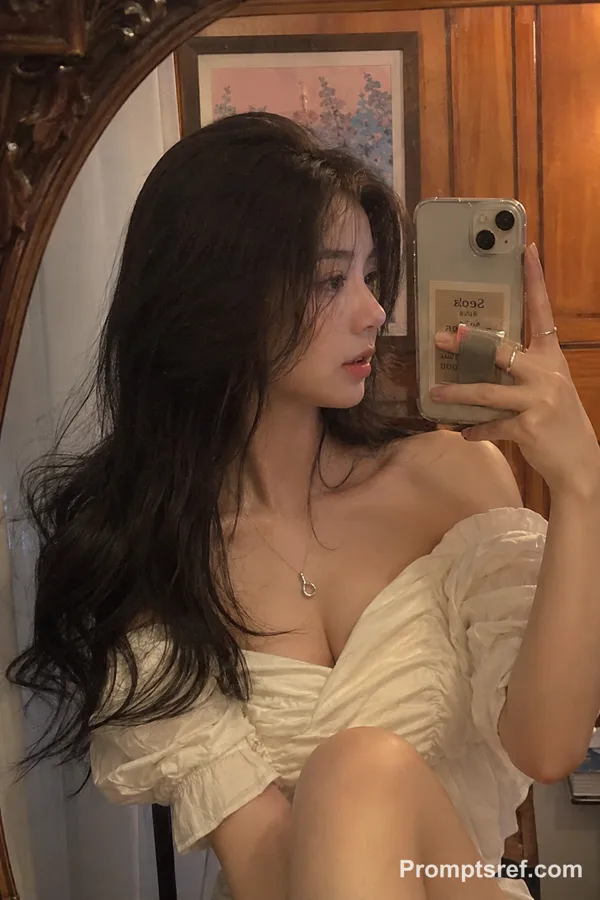
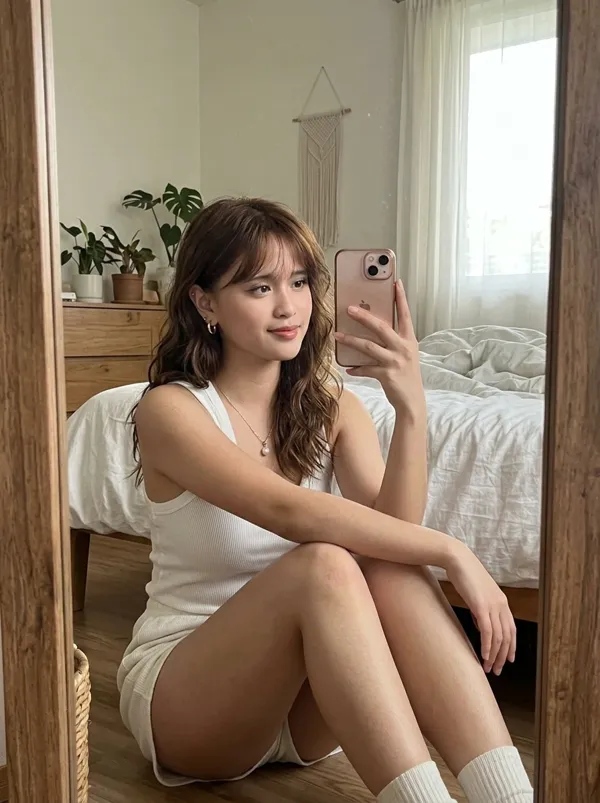
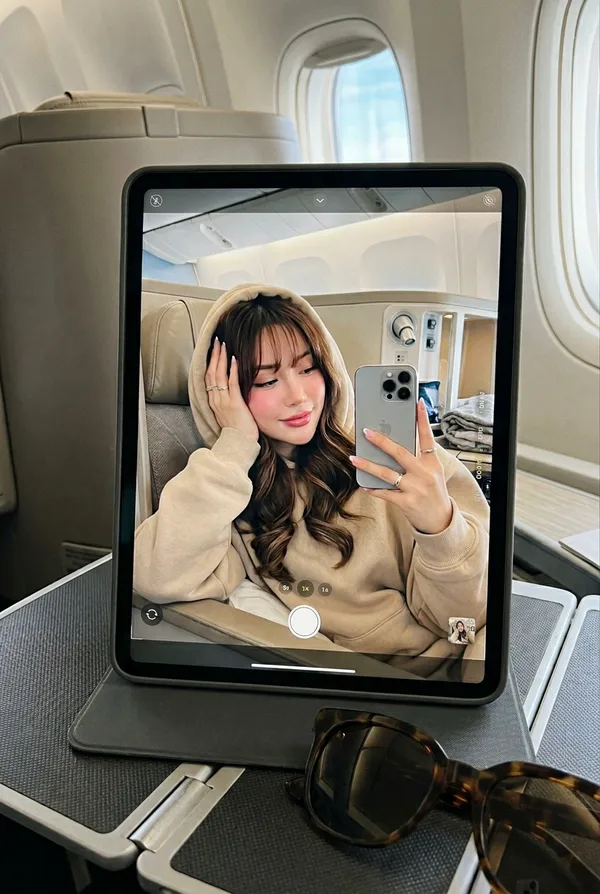
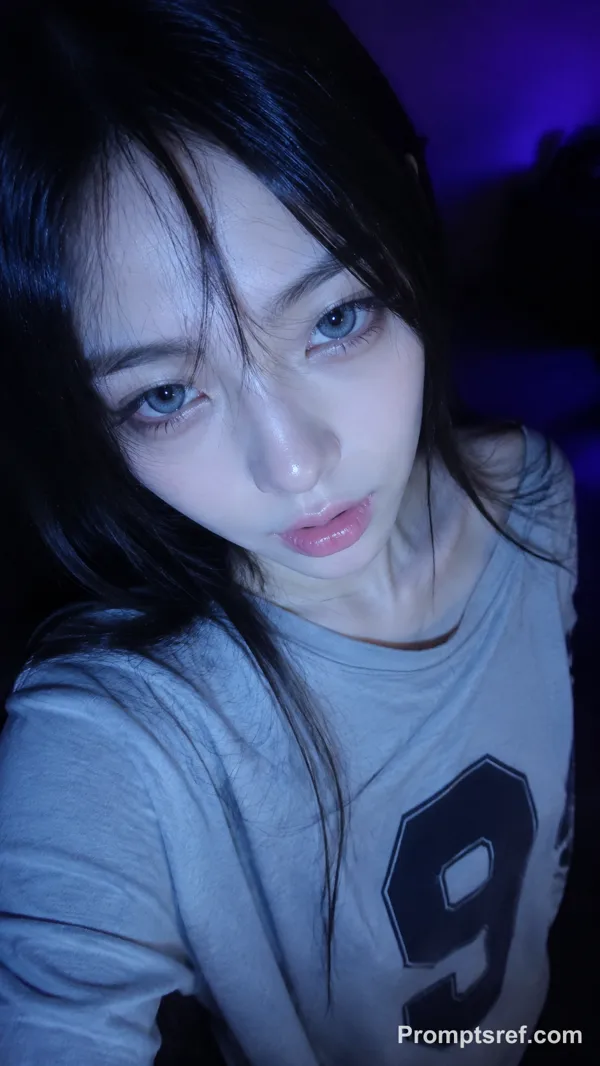
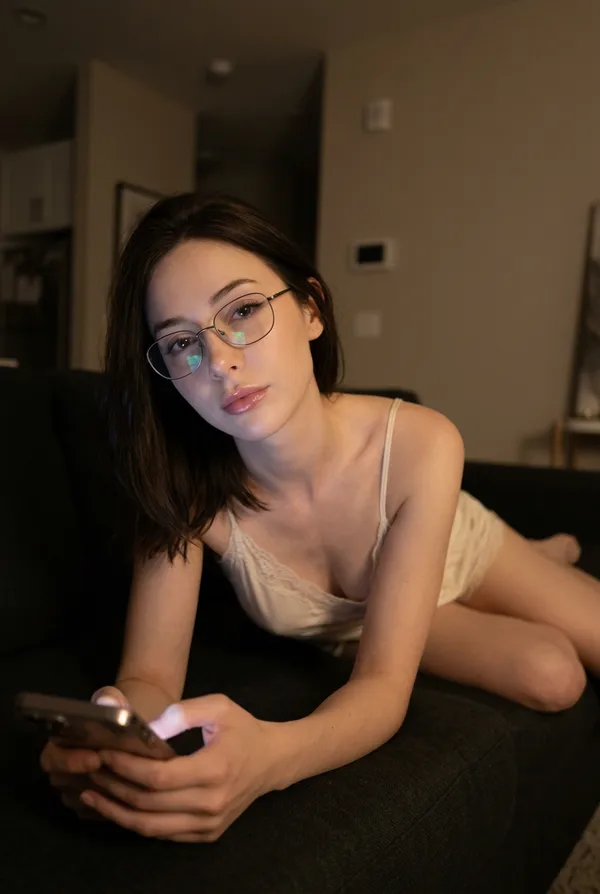
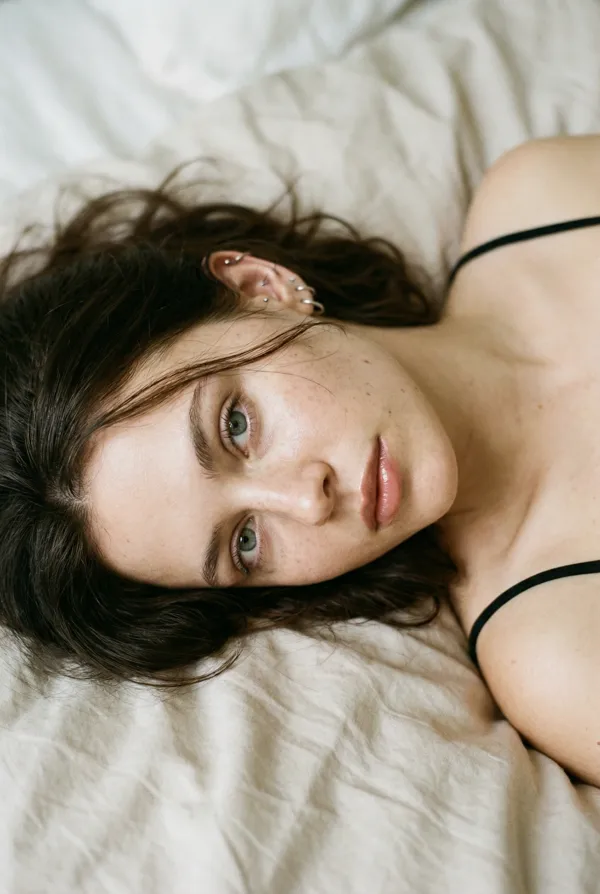
{"image_settings": {"aspect_ratio": "3:4", "resolution": {"width": 1152, "height": 1536}}, "prompt": {"identity_lock": {"reference": "input_photo", "preserve": ["face", "facial proportions", "eye shape", "nose", "lips", "skin tone", "skin texture", "hairline", "overall identity"], "rules": ["no face swap", "no beautify", "no smoothing", "no reshaping", "no AI look"]}, "scene": {"camera_angle": "high-angle downward shot, POV", "composition": "MacBook screen fills most of the frame, thin strip of physical keyboard visible at the bottom", "screen_surface": ["visible RGB pixel grid", "subtle moire effect", "micro dust on glass", "faint fingerprints", "soft ambient reflections"]}, "digital_interface": {"os": "macOS dark mode", "background_app": {"name": "Spotify", "view": "Liked Songs", "visible_tracks": ["Blank Space \u2013 Taylor Swift", "Shake It Off \u2013 Taylor Swift", "Cruel Summer \u2013 Taylor Swift", "Love Story \u2013 Taylor Swift"]}, "foreground_app": {"name": "Photo Booth", "state": "live preview window", "position": "floating, center-right"}}, "photo_booth_content": {"environment": {"room": "dim bedroom", "background": "off-white wall, rumpled bedding", "lighting": "low-light, nocturnal, cool screen glow mixed with warm skin tones"}, "subject": {"pose": "lying down, relaxed, candid", "expression": "natural, slightly relaxed", "outfit": "light-colored tank top", "prop": {"item": "iPhone 15 Pro", "hand": "right hand"}}}, "realism_rules": ["this is a photo of a screen, not a screenshot", "raw smartphone photo look", "natural noise", "imperfect glass", "no studio lighting", "no HD polish"]}, "negative_prompt": ["screenshot", "flat UI", "perfect screen", "clean glass", "studio lighting", "beauty filter", "cartoon", "3d render", "painting", "watermark", "blurred face"]}
Remixes
RemixNo remixes yet. Be the first to make your own version.
Use this image prompt
- 01
Start with the prompt
Copy the prompt, or open it with the generate button.
- 02
Make your changes
Adjust the subject, setting, or details. Add reference media if needed.
- 03
Check before generating
Review the model and output settings. Results can vary between generations.