Veo 3 Prompt - Cinematic Heated Mat Product Cutaway

- Model
- Veo 3
- Aspect ratio
- 9:16
- Quality
- veo3_fast
Prompt
Photorealistic high-end 3D product visualization of a Bebenuvo carbon electric heated mat, based on the real product appearance, lying flat in a clean minimal neutral studio environment.
The entire 8-second video is ONE continuous cinematic shot with no cuts.
Begin immediately with the fully assembled heated mat viewed from a low three-quarter angle.
The camera performs a slow controlled push-in combined with a very subtle orbit.
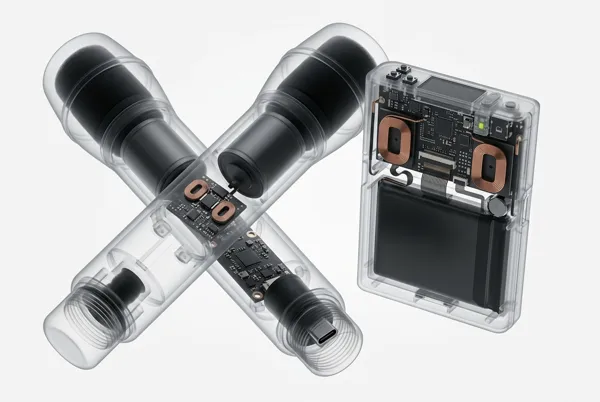
As the camera approaches, the removable fabric cover gently lifts a short distance from one corner and gradually separates from the electric heating mat underneath, creating a clean controlled product cutaway.
Clearly distinguish only the removable outer fabric cover and the electric heated mat body underneath. Do not invent unsupported detailed internal construction.
A very subtle luminous orange edge highlight appears beneath the surface of the heated mat, suggesting the hidden heating system without revealing a fictional wire pattern.
Keep the exact same mat dimensions, thickness, rounded corners, fabric texture, color palette and overall product design consistent throughout this shot and all following videos.
Clean matte fabric materials, realistic textile texture, soft diffused neutral studio lighting, gentle ambient occlusion, pale grey background.
The ONLY saturated color anywhere is luminous orange, used exclusively for technical emphasis.
Aspect ratio: 9:16 vertical.
Duration: 8 seconds.
ONE continuous shot.
Negative prompt: multiple shots, hard cuts, rapid camera changes, static opening frame, magical transformation, fictional exposed wiring, arbitrary serpentine heating wires, complex circuit boards, changing product geometry, excessive layers, people, hands, text, captions, letters, numbers, watermark, cartoon, illustration, clay, low-poly, film grain, camera shake.
Remixes
RemixNo remixes yet. Be the first to make your own version.
Use this video prompt
- 01
Start with the prompt
Copy the prompt, or open it with the generate button.
- 02
Make your changes
Adjust the subject, setting, or details. Add reference media if needed.
- 03
Check before generating
Review the model and output settings. Results can vary between generations.